
Using T4 Templates to Generate C# Enums from SQL Server Database Tables

When building applications with C# and SQL Server, it is often necessary to define codes in the database that correspond with enums in the application. However, it can be burdensome to maintain the enums manually, as codes are added, modified, and deleted in the database.

In this blog post, I’ll share a T4 template that I wrote which does this automatically. I looked online first, and did find a few different solutions for this, but none that worked for me as-is. So, I built this generic T4 template to do the job, and you can use it too.

Let’s say you’ve got a Color table and ErrorType table in the database, populated as follows:
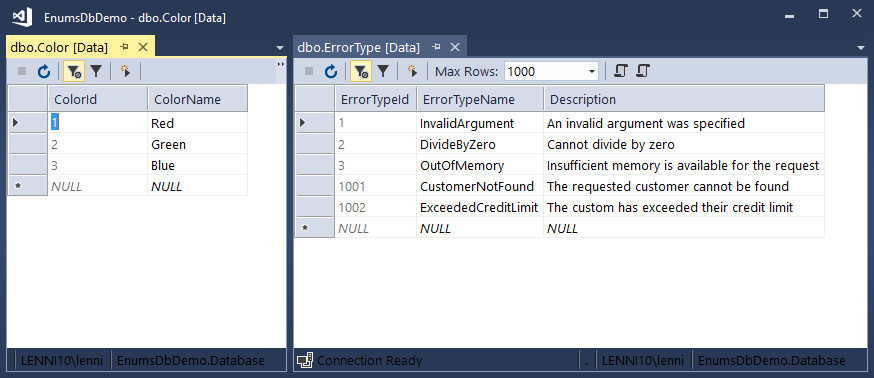
Now you’d like enums in your C# application that correspond to these rows. The T4 template will generate them as follows:
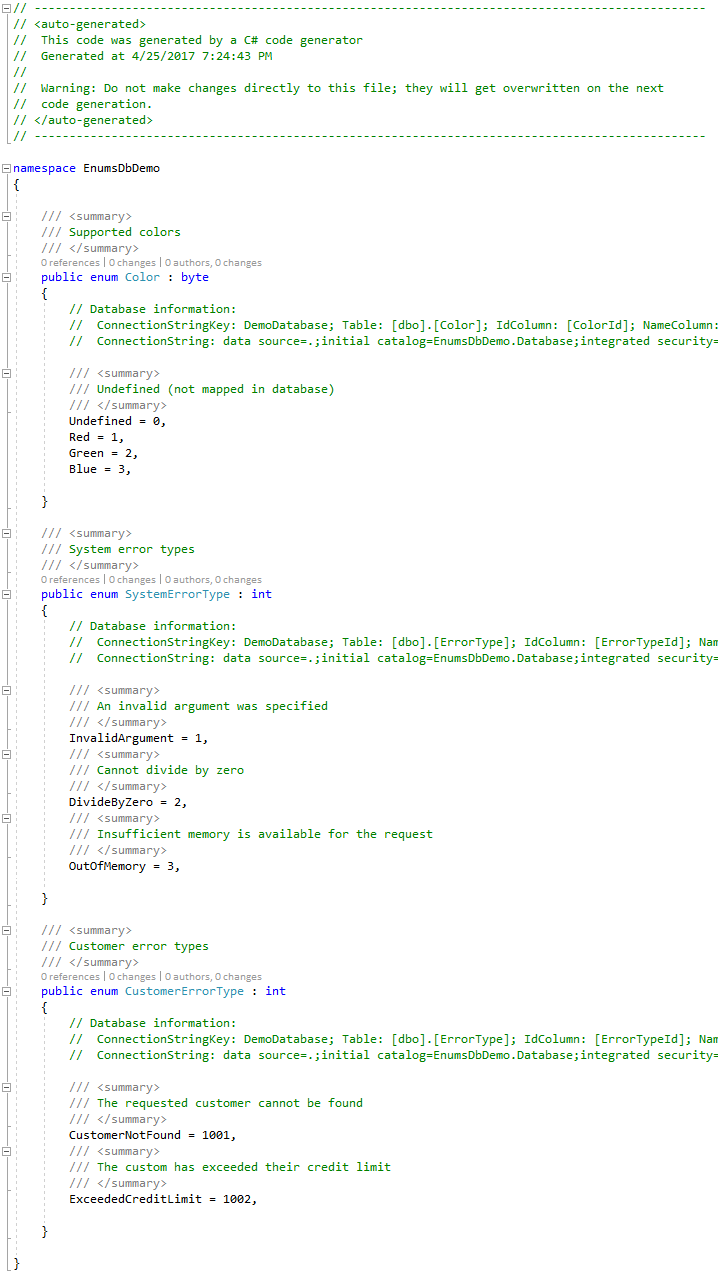
Before showing the code that generates this, let’s point out a few things.

First, notice that the Color table has only an ID and a name column, while the ErrorType table has an ID, name, and description columns. Thus, the ErrorType enums include XML comments based on the descriptions in the database, which appear in IntelliSense when referencing the enums in Visual Studio.

Also notice that one enum was generated for the Color table, while two enums were generated for the ErrorType table. This is because we instructed the T4 template to create different enums for different value ranges (0 – 999 for SystemErrorType, and 1000 – 1999 for CustomerErrorType) in the same table.

Finally, the Color enum includes an additional member Undefined with a value of 0 that does not appear in the database, while the other enums don’t include the Undefined member. This is because, in the case of Color, we’d like an enum to represent Undefined, but we don’t want it in the database because we don’t want to allow 0 as a foreign key into the Color table.

This gives you an idea of the flexibility that this T4 template gives you for generating enums from the database. The enums above were generated with the following T4 template:

<#@include file="EnumsDb.ttinclude" #>
<#
  var configFilePath = "app.config";

  var enums = new []
  {
    new EnumEntry
      ("Supported colors", "DemoDatabase", "dbo", "Color", "ColorId", "ColorName", "ColorName")
      { GenerateUndefinedMember = true },

    new EnumEntry
      ("System error types", "DemoDatabase", "dbo", "ErrorType", "ErrorTypeId", "ErrorTypeName", "Description")
      { EnumName = "SystemErrorType", ValueRange = new Tuple<long, long>(0, 999) },

    new EnumEntry
      ("Customer error types", "DemoDatabase", "dbo", "ErrorType", "ErrorTypeId", "ErrorTypeName", "Description")
      { EnumName = "CustomerErrorType", ValueRange = new Tuple<long, long>(1000, 1999) },
  };

  var code = this.GenerateEnums(configFilePath, enums);

  return code;
#>

You can see that there is very little code that you need to write in the template, and that’s because all the real work is contained inside the EnumsDb.ttinclude file (referenced at the top with @include), which contains the actual code to generate the enums, and can be shared throughout your application. A complete listing of the EnumsDb.ttinclude file appears at the end of this blog post.

All you need to do is call GenerateEnums with two parameters. The first is a path your application’s configuration file, which holds the database connection string(s). The second is an array of EnumEntry objects, which drives the creation of enums in C#. Specifically, in this case, there are three EnumEntry objects, which results in the three enums that were generated.

Each enum entry contains the following properties:

  1. Description (e.g., “Supported colors”). This description appears as XML comments for the enum.
  2. Database connection string key (e.g., “DemoDatabase”). It is expected that a connection string named by this key is defined in the application’s configuration file. Since this property exists for each enum entry, it is entirely possible to generate different enums from different databases.
  3. Schema name (e.g., “dbo”). This is the schema that the table is defined in.
  4. Table name (e.g., “Color”). This is the table that contains rows of data for each enum member.
  5. ID column name (e.g., “ColorId”). This is the column that contains the numeric value for each enum member. It must be an integer type, but it can be an integer of any size. The generator automatically maps tinyint to byte, int to int, smallint to short, and bigint to long.
  6. Member column name (e.g., “ColorName”). This is the column that contains the actual name of the enum member.
  7. Description column name. This should be the same as the Member column name (e.g., “ColorName”) if there is no description, or it can reference another column containing the description if one exists. If there is a description, then it is generated as XML comments above each enum member.
  8. Optional:
    1. EnumName. If not specified, the enum is named after the table. Otherwise, you can choose another name if you don’t want the enum named after the table name.
    2. GenerateUndefinedMember. If specified, then the template will generate an Undefined member with a value of 0.
    3. ValueRange. If specified, then enum members are generated only for rows in the database that fall within the specified range of values. The ErrorType table uses this technique to generate two enums from the table; one named SystemErrorType with values 0 – 999, and another named CustomerErrorType with values 1000 – 1999.

This design offers a great deal of flexibility, while constantly ensuring that the enums defined in your C# application are always in sync with the values defined in the database. And of course, you can modify the template as desired to suit any additional needs that are unique to your application.

The full template code is listed below. I hope you enjoy using it as much as I enjoyed writing it. Happy coding! 😊

<#@ template hostspecific="true" language="C#" debug="false" #>
<#@ assembly name="System.Configuration" #>
<#@ assembly name="System.Data" #>
<#@ import namespace="System.Configuration" #>
<#@ import namespace="System.Data" #>
<#@ import namespace="System.Data.SqlClient" #>
<#@ import namespace="System.Text" #>
<#+
  private string GenerateEnums(string configFilePath, EnumEntry[] entries)
  {
    if (entries == null)
    {
      return string.Empty;
    }

    var ns = System.Runtime.Remoting.Messaging.CallContext.LogicalGetData("NamespaceHint");
    var sb = new StringBuilder();
    sb.AppendLine(this.GenerateHeaderComments());
    sb.AppendLine($"namespace {ns}");
    sb.AppendLine("{");
    foreach(var entry in entries)
    {
      try
      {
        sb.Append(this.GenerateEnumMembers(configFilePath, entry));
      }
      catch (Exception ex)
      {
        sb.AppendLine($"#warning Error generating enums for {entry.EnumDescription}");
        sb.AppendLine($"  // Message: {ex.Message}");
      }
    }
    sb.AppendLine();
    sb.AppendLine("}");
    return sb.ToString();
  }

  private string GenerateHeaderComments()
  {
    var comments = $@"
// ------------------------------------------------------------------------------------------------
// <auto-generated>
//  This code was generated by a C# code generator
//  Generated at {DateTime.Now}
// 
//  Warning: Do not make changes directly to this file; they will get overwritten on the next
//  code generation.
// </auto-generated>
// ------------------------------------------------------------------------------------------------
    ";

    return comments;
  }

  private string GenerateEnumMembers(string configFilePath, EnumEntry entry)
  {
    var code = new StringBuilder();
    var connStr = this.GetConnectionString(configFilePath, entry.ConnectionStringKey);
    var enumDataType = default(string);
    using (var conn = new SqlConnection(connStr))
    {
      conn.Open();
      using (var cmd = conn.CreateCommand())
      {
        cmd.CommandText = @"
          SELECT DATA_TYPE
          FROM INFORMATION_SCHEMA.COLUMNS
          WHERE TABLE_SCHEMA = @SchemaName AND TABLE_NAME = @TableName AND COLUMN_NAME = @IdColumnName
        ";

        cmd.Parameters.AddWithValue("@SchemaName", entry.SchemaName);
        cmd.Parameters.AddWithValue("@TableName", entry.TableName);
        cmd.Parameters.AddWithValue("@IdColumnName", entry.IdColumnName);

        var sqlDataType = cmd.ExecuteScalar();
        if(sqlDataType == null)
        {
          throw new Exception($"Could not discover ID column [{entry.IdColumnName}] data type for enum table [{entry.SchemaName}].[{entry.TableName}]");
        }
        enumDataType = this.GetEnumDataType(sqlDataType.ToString());

        var whereClause = string.Empty;
        if (entry.ValueRange != null)
        {
          whereClause = $"WHERE [{entry.IdColumnName}] BETWEEN {entry.ValueRange.Item1} AND {entry.ValueRange.Item2}";
        }

        cmd.CommandText = $@"
          SELECT
            Id = [{entry.IdColumnName}],
            Name = [{entry.NameColumnName}],
            Description = [{entry.DescriptionColumnName}]
          FROM
            [{entry.SchemaName}].[{entry.TableName}]
          {whereClause}
          ORDER BY
            [{entry.IdColumnName}]
        ";
        cmd.Parameters.Clear();

        var innerCode = new StringBuilder();
        var hasUndefinedMember = false;
        using (var rdr = cmd.ExecuteReader())
        {
          while (rdr.Read())
          {
            if (rdr["Name"].ToString() == "Undefined" || rdr["Id"].ToString() == "0")
            {
              hasUndefinedMember = true;
            }
            if (entry.NameColumnName != entry.DescriptionColumnName)
            {
              innerCode.AppendLine("\t\t/// <summary>");
              innerCode.AppendLine($"\t\t/// {rdr["Description"]}");
              innerCode.AppendLine("\t\t/// </summary>");
            }
            innerCode.AppendLine($"\t\t{rdr["Name"].ToString().Replace("-", "_")} = {rdr["Id"]},");
          }
          rdr.Close();
        }
        if ((entry.GenerateUndefinedMember) && (!hasUndefinedMember))
        {
          var undefined = new StringBuilder();

          undefined.AppendLine("\t\t/// <summary>");
          undefined.AppendLine("\t\t/// Undefined (not mapped in database)");
          undefined.AppendLine("\t\t/// </summary>");
          undefined.AppendLine("\t\tUndefined = 0,");

          innerCode.Insert(0, undefined);
        }
        code.Append(innerCode.ToString());
      }
      conn.Close();
    }

    var final = $@"
  /// <summary>
  /// {entry.EnumDescription}
  /// </summary>
  public enum {entry.EnumName} : {enumDataType}
  {{
    // Database information:
    //  {entry.DbInfo}
    //  ConnectionString: {connStr}

{code}
  }}
    ";

    return final;
  }

  private string GetConnectionString(string configFilePath, string key)
  {
    var map = new ExeConfigurationFileMap();
    map.ExeConfigFilename = this.Host.ResolvePath(configFilePath);
    var config = ConfigurationManager.OpenMappedExeConfiguration(map, ConfigurationUserLevel.None);
    var connectionString = config.ConnectionStrings.ConnectionStrings[key].ConnectionString;

    return connectionString;
  }

  private string GetEnumDataType(string sqlDataType)
  {
    var enumDataType = default(string);
    switch (sqlDataType.ToString())
    {
      case "tinyint"  : return "byte";
      case "smallint" : return "short";
      case "int"      : return "int";
      case "bigint"   : return "long";
      default :
        throw new Exception($"SQL data type {sqlDataType} is not valid as an enum ID column");
    }
  }

  private class EnumEntry
  {
    public string EnumDescription { get; }
    public string ConnectionStringKey { get; }
    public string SchemaName { get; }
    public string TableName { get; }
    public string IdColumnName { get; }
    public string NameColumnName { get; }
    public string DescriptionColumnName { get; }

    public string EnumName { get; set; }
    public Tuple<long, long> ValueRange { get; set; }
    public bool GenerateUndefinedMember { get; set; }

    public string DbInfo
    {
      get
      {
        var info = $"ConnectionStringKey: {this.ConnectionStringKey}; Table: [{this.SchemaName}].[{this.TableName}]; IdColumn: [{this.IdColumnName}]; NameColumn: [{this.NameColumnName}]; DescriptionColumn: [{this.DescriptionColumnName}]";
        if (this.ValueRange != null)
        {
          info = $"{info}; Range: {this.ValueRange.Item1} to {this.ValueRange.Item2}";
        }
        return info;
      }
    }

    public EnumEntry(
      string enumDescription,
      string connectionStringKey,
      string schemaName,
      string tableName,
      string idColumnName = null,
      string nameColumnName = null,
      string descriptionColumnName = null
    )
    {
      this.EnumDescription = enumDescription;
      this.ConnectionStringKey = connectionStringKey;
      this.SchemaName = schemaName;
      this.TableName = tableName;
      this.IdColumnName = idColumnName ?? tableName + "Id";
      this.NameColumnName = nameColumnName ?? "Name";
      this.DescriptionColumnName = descriptionColumnName ?? "Description";
      this.EnumName = tableName;
    }

  }
#>
Making the Case for Entity Framework in the Enterprise

Recently, I was met with some friction by the IT department at a client where, they asserted, that a decision had been made years ago to ban Entity Framework. Like many enterprise environments, this client was understandably concerned with the potential pitfalls of embracing Entity Framework. That meant that my job was to convince them otherwise – not to discount their apprehension, but quite the contrary – to demonstrate how EF can be leveraged for its advantages, and avoided for its shortcomings.

Entity Framework (EF) is a broad framework with many optional parts. There are several aspects of EF that provide great benefit, while others are a source of great consternation – particularly from the perspective of the database purist. As the cliché goes, “with great power comes great responsibility,” and so this blog post explores different aspects of EF, and identifies how to best leverage the framework, and not abuse it.

There are two distinct developer experiences with EF.

  • Design time
  • Run time

EF at Design Time

At design time, there are many different ways that developers can choose to use EF. All of them typically involve code generators, which could be any combination of automatically generated C# code (POCO classes, stored procedure wrappers) and T-SQL code (DDL).

The exact type of code generated depends on the methodology employed by the application developer. These are the set of “xxx-first” approaches to database design, which include:

  • Database-first
  • Model-first
  • Code-first

Database-first is the only acceptable methodology for SQL Server purists. It essentially means that the database comes first, and that EF has no influence on the database design. EF does not generate DDL to create the database, and there is no EF “smell” in the design. Instead, the SQL Server expert implements the database by hand, applying all their experience, and using every best practice there is. They create the database with properly normalized tables, data types, foreign key constraints, unique constraints, check constraints, stored procedures, naming conventions, and so on. And, ideally, they build and maintain the database design using SQL Server Data Tools (SSDT) in Visual Studio with source control (TFS, GIT, etc.), rather than by managing scripts in SSMS.

With the other methodologies (model-first and code-first), the application developer focuses on their logical model (either as a visual .edmx file, or as POCO classes in C# code), and lets the EF design time “figure out the database” from the model. They let EF generate the DDL, which in turn creates the database. All SQL Server data types are inferred from their closest .NET equivalent. Then, as the model evolves, EF generates code migrations to rev-up and rev-down the database.

This approach is typically rejected by database purists, who rightfully object to the database being “reverse-engineered” from a model (.edmx file), or from C# POCO classes. With model-first and code-first, all direct control over the database design is lost. Thus, the only way to control the database design is indirectly, by coercing EF’s design-time DDL generator through the use of naming conventions or [attributes]. Essentially, it means that the application developer, who often lacks the experience and skills needed to properly design a database, gets to design the database. This is a terrible way to build and evolve an enterprise database model.

Our client’s application is strictly database-first, and uses SSDT to centrally store the database design, with full version history in TFS. Furthermore, it leverages a unique open-source T4 template code generator that enables database-first with an extensible object model, and zero friction for migrations. I have personally made several contributions to this utility, which is called the EntityFramework Reverse POCO Generator.

https://marketplace.visualstudio.com/items?itemName=SimonHughes.EntityFrameworkReversePOCOGenerator#itemName=SimonHughes.EntityFrameworkReversePOCOGenerator

This generator produces C# POCO classes that are always in sync with the tables in the database, and it creates these as partial classes, so that the C# developer can easily build extensions that survive code regeneration. It also generates strongly typed stored procedure wrapper methods, which promotes and simplifies the use of stored procedures at run time.

EF at Run Time

While every developer design time experience may vary, the run time experience is always the same.

  1. Connect to the database with a context
  2. Retrieve objects by querying the context
  3. Modify objects in memory, while the context tracks changes
  4. Save modified objects back to the database

Here, database purists have additional concerns, particularly with item #2. Specifically how is the database being queried? It could be either direct SQL or a stored procedure. When EF is used to call a stored procedure, then it’s no different than calling that stored procedure using conventional ADO.NET or Enterprise Library. Whether it’s an EF DbContext object or an old-fashioned SqlCommand object, the query is prewritten and embedded in the stored procedure.

If, on the other hand, the developer uses EF to execute a LINQ query, then the EF runtime dynamically generates direct SQL. This can potentially (and all to often does) result in poor queries being sent to SQL  Server by the application. I stress potentially because, a) the dynamically generated SQL queries have in fact improved greatly over the many versions of EF, and b) just because a stored procedure is being used instead doesn’t necessarily mean better performance; for example, if the stored procedure has a badly written query inside of it.

It’s similar to the design-time concern; an application developer that lacks experience in SQL Server writes a LINQ query in C# that results in generated SQL that performs poorly. All to often, these developers don’t understand deferred execution in EF, and they can repeatedly execute the same query over and over inside a loop (rather than just once) without realizing it. They are also prone to just append one .Include after another in their LINQ query, resulting in a great number of JOINs that returns a lot of duplicate parent data in the resultset.

EF has excellent run time support for stored procedures, and, as mentioned, the T4 template code generator provides the C# developer with ready-to-use methods that wrap every stored procedure. The vast majority of data access against the database should occur by calling stored procedures. Like the database modeling at design time, these stored procedures should be written by hand with careful attention paid to SQL Server best practices. However, there may be some lightweight cases (for example, simple single-row, single-table SELECTs) where you could allow EF to generate the query without a stored procedure, where the generated query is not objectionable.

Furthermore, you can implement a SelectEntity stored procedure that returns an entire entity as XML. This not only means using a stored procedure and not EF to query the database, but that the stored procedure will produce the most lightweight resultset without all the duplicate parent data that would result with traditional JOINs in the stored procedure.

One of the biggest client-side advantages that EF provides is change tracking. After retrieving and deserializing a complete entity via the aforementioned stored procedure, you can attach it to the EF context so that EF can track changes to it, just the same as it would if EF queried the database without the stored procedure. Then, as you manipulate the object in memory, the EF context keeps track of what rows in which tables need to be INSERTed, UPDATEd, or DELETEd. These are complex details that are very difficult to implement by hand, while allowing the context to figure that all out dramatically streamlines your development process.

Summary

In conclusion, the philosophy is that best SQL Server practices are followed, both at design time with respect to data modeling, and at run time with respect to querying. You should take a “pick-and-choose” approach to EF, embracing those aspects that provide compelling developer benefits, and rejecting those that run contrary to proper database design and query principles.

Thus, your application should take a database-first approach to data modeling, and use stored procedures exclusively to query the database, ensuring no EF “smell” at either design time or run time.

Working with Temporal Tables in SQL Server 2016 (Part 2)

In my previous post, I introduced the concept of temporal data, and explained at a high level how SQL Server 2016 implements temporal tables. This post dives into the details of exactly how you create and query temporal tables.

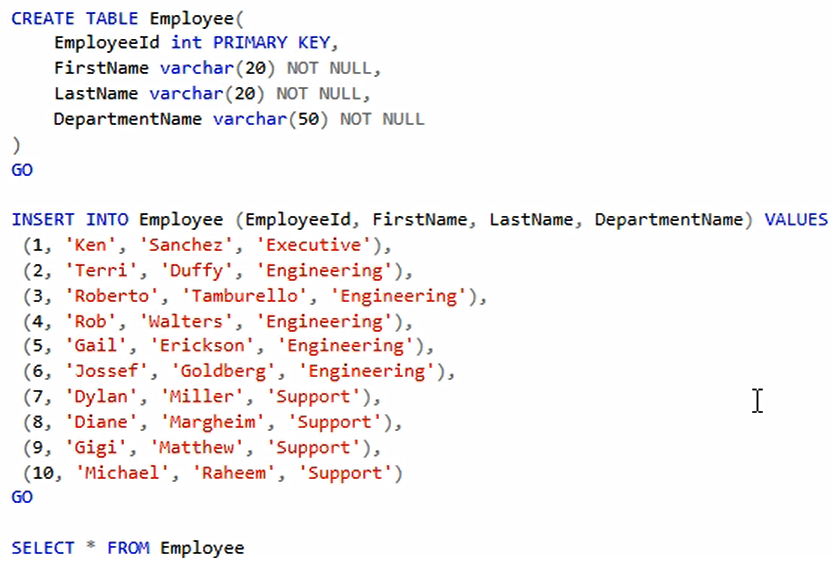
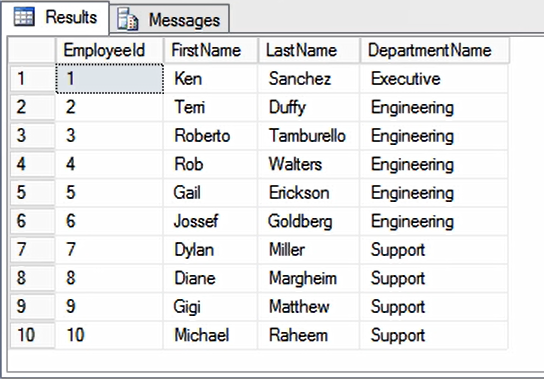
Let’s start with an ordinary table, and convert it into a temporal table. So I’ll create the Employee table, and load it up with some data.

Temporal01

Temporal02

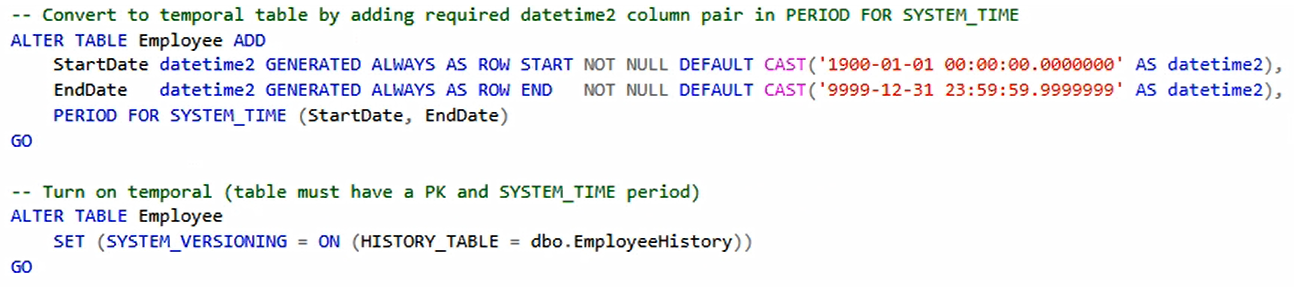
To convert this into a temporal table, first I’ll add the two period columns and then I’ll enable temporal and set dbo.EmployeeHistory as the name of the history table.

Temporal03

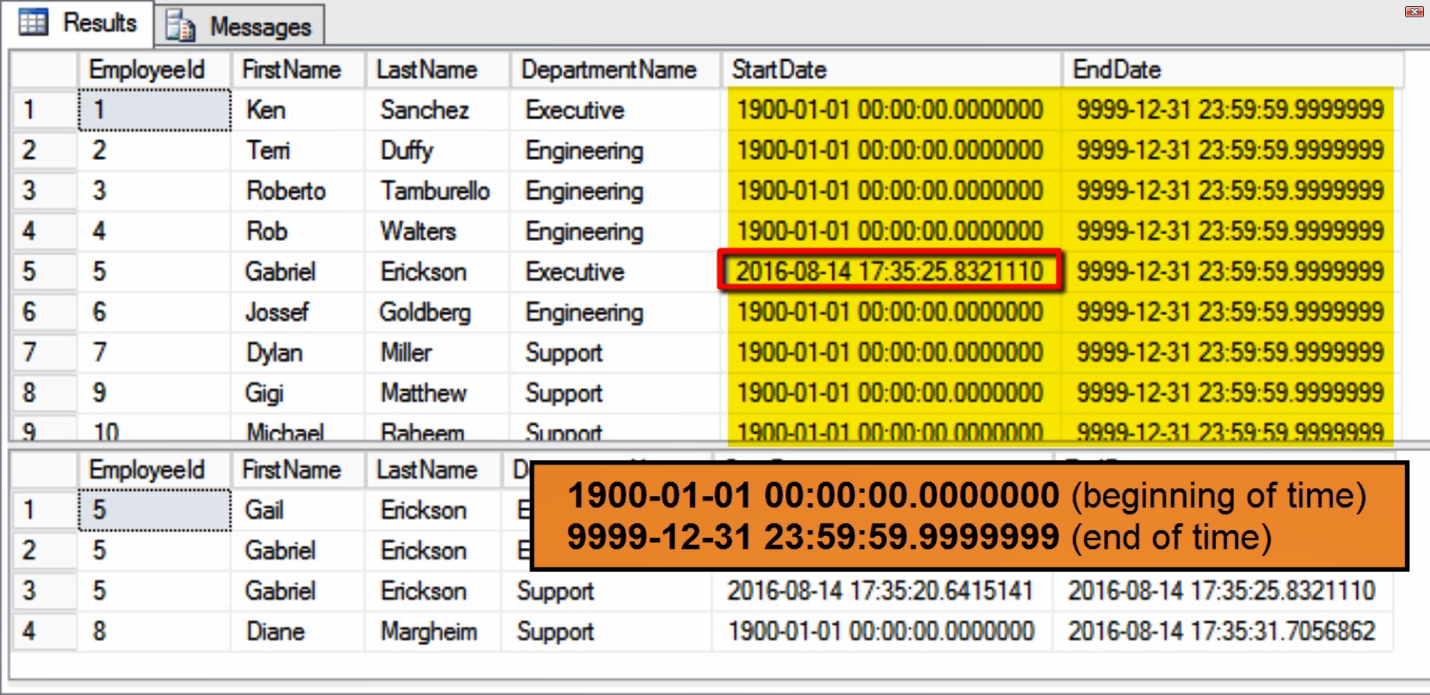
Note that because we’re converting an existing table, this must be done in two separate ALTER TABLE statements. For a new temporal table, you can create it and enable it with a single CREATE TABLE statement. Also, and because this is an existing table with existing data, it’s necessary to set DEFAULT values that initialize the period columns with beginning-of-time (1900-01-01 00:00:00.0000000) until end-of-time (9999-12-31 23:59:59.9999999) values, which is not be necessary when creating a new table, or altering an existing table with no rows.

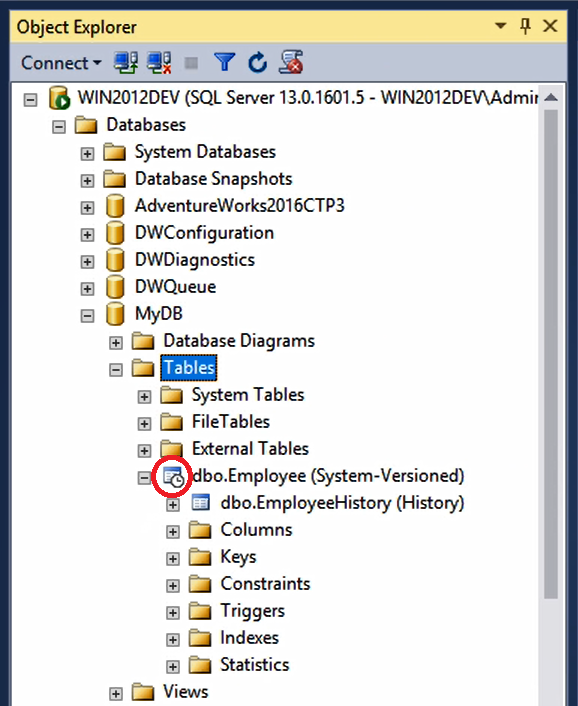
Now when we expand to see the Employee table in the Object Explorer, you can see that it is being designated as a System-Versioned table, which is the official name for temporal tables in SQL Server 2016. It also has a special icon showing a clock over the table, and this tells you that you’re looking at a temporal table. And nested directly beneath, is the history table, dbo.EmployeeHistory, which SQL Server has created with an identical schema to match dbo.Employee.

Temporal04

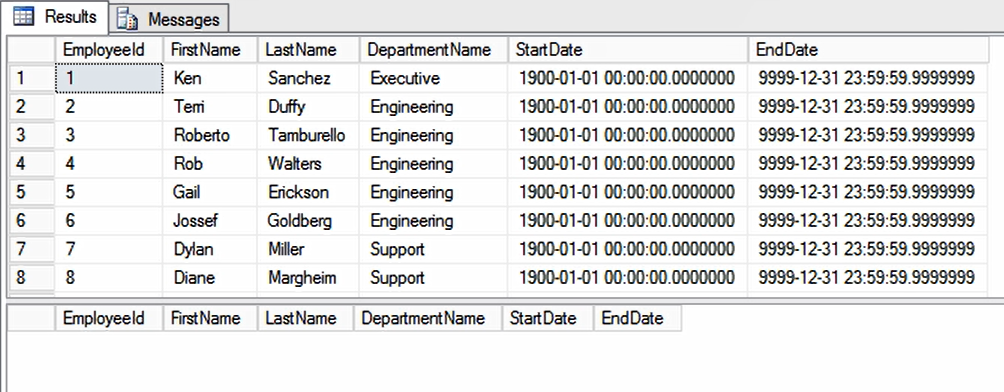
To effectively demonstrate how to query temporal tables, we’ll need to change some data first. You can see the current state of the data in the Employee table just as we inserted it, while the history table is completely empty because we haven’t made any changes yet:

Temporal05

Temporal06

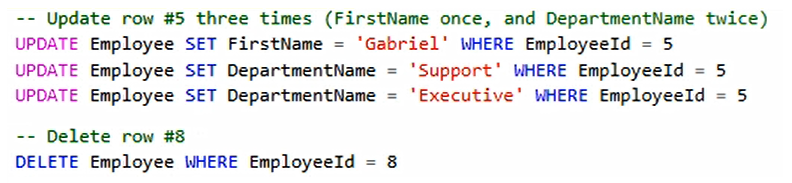
So let’s update and delete a few rows. I’ll update the same row for EmployeeID number 5 three times, with a 5 or 6 second pause in between each one. First I’ll change the employee name to Gabriel, then I’ll change the department name to Support, and then I’ll change the department name once more to Executive. And, I’ll also delete EmployeeID number 8:

Temporal07

Now I’ll query the tables again:

Temporal08

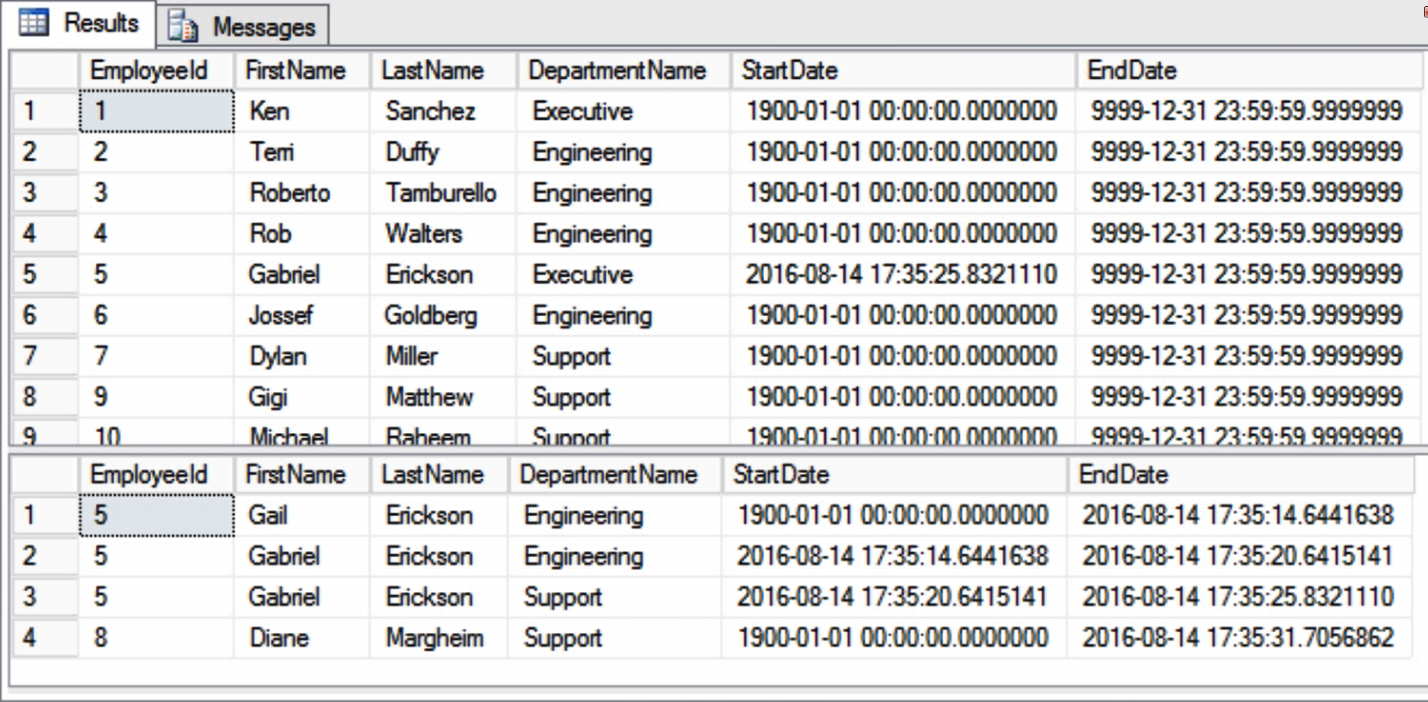
The Employee table shows the current state just as you’d expect, with EmployeeID number 5 showing the result of the latest UPDATE, and EmployeeID number 8 being deleted. But if you examine the history table, you can see the three earlier versions of employee ID number 5, corresponding with each of the three updates we ran against that row. And we also see EmployeeID number 8, which we deleted.

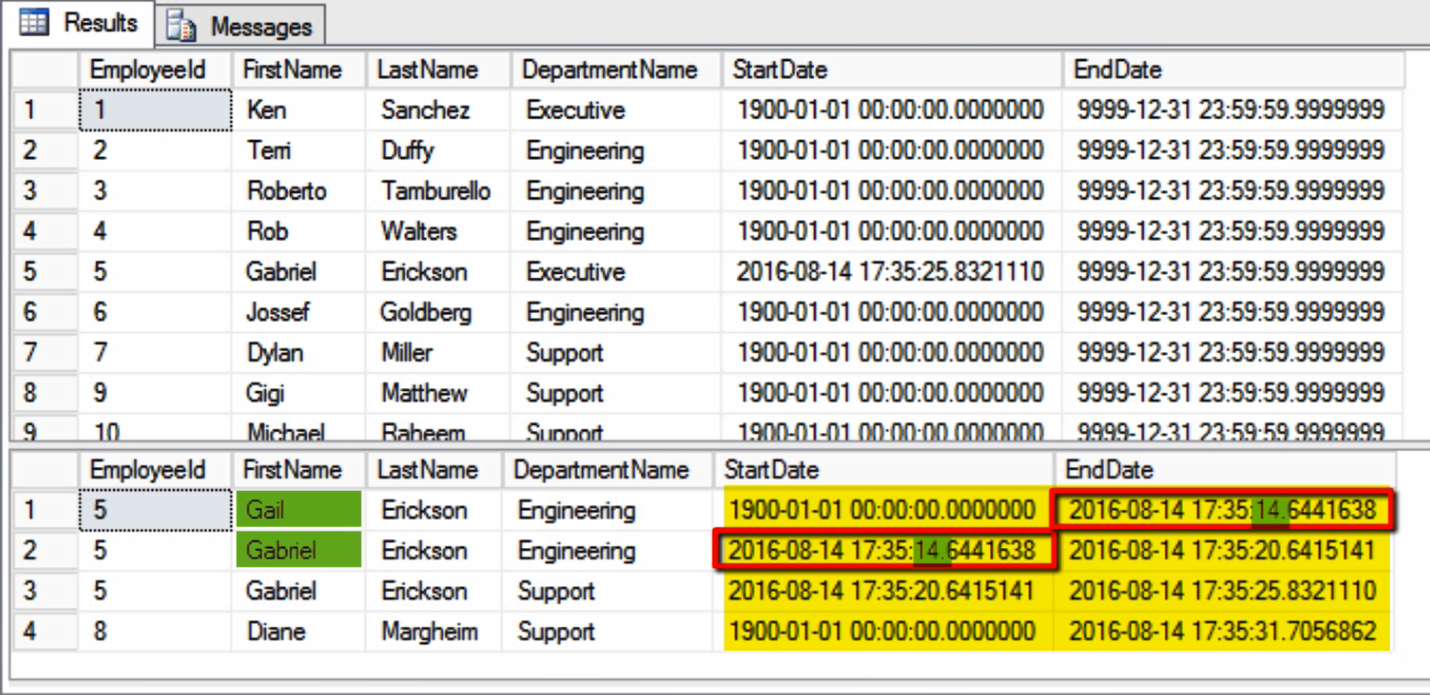
Let’s have a closer look at the period columns. In the main table, you can see that every row except for EmployeeID number five has period column values that span from the beginning of time until the end of time. But EmployeeID number five has a StartDate indicating that this version of the row began on August 14 at about 5:35pm. This tells you that there are earlier versions of this row available in the history table.

Temporal09

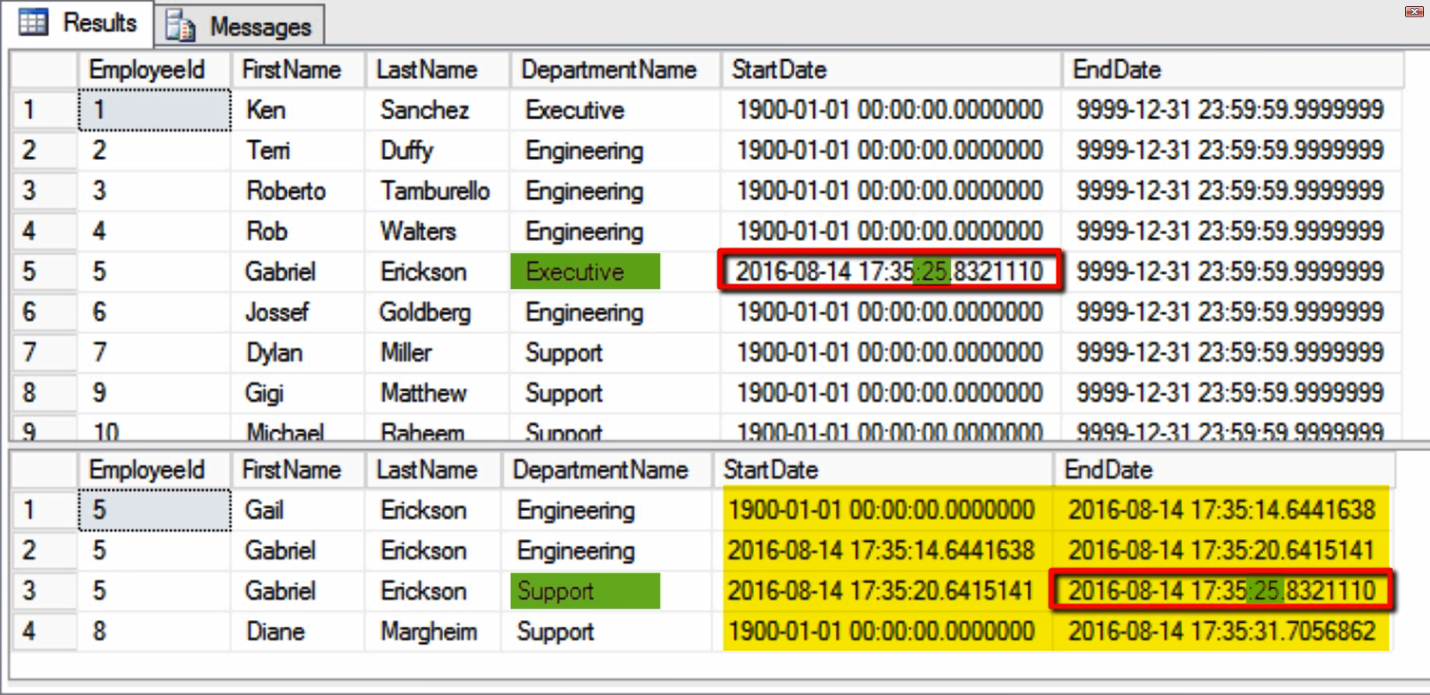
And indeed, the earlier versions are visible here in the history table. Specifically, the previous version of this row is the one that ends at the same time that the current version begins, August 14th at 5:35 and 25 seconds, which is when we changed the DepartmentName from Support to Executive. This ending datetime2 value of 25 seconds past the minute matches exactly with the starting datetime2 value in the current row:

Temporal10

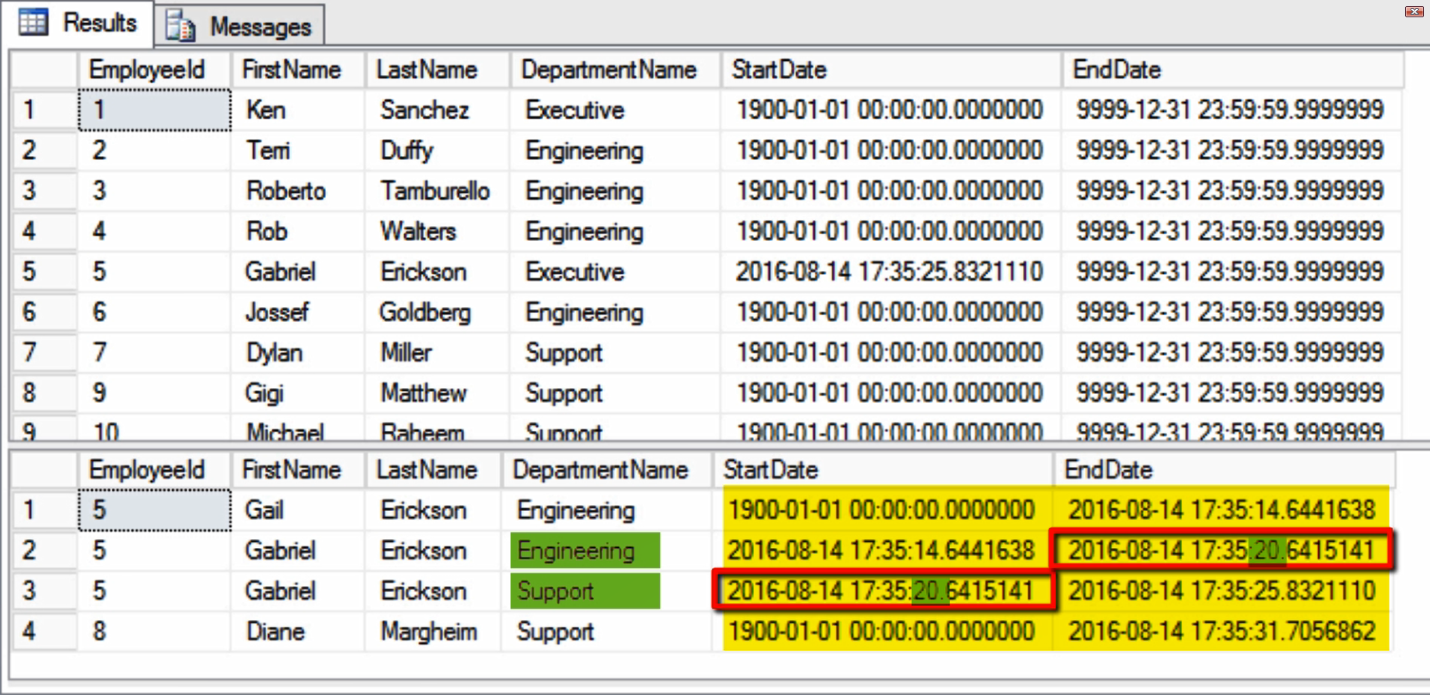
The previous version also was also replaced by an even earlier version about five seconds earlier, at 20 seconds past the minute, when we changed the department name from Engineering to Support:

Temporal11

And there’s one earlier version of the row from about 6 seconds earlier, at 14 seconds past the minute, which is when we changed the FirstName from Gail to Gabriel (this is clearly the very first version of the row, as indicated by its start date of 1900-01-01 00:00:00.0000000):

Temporal12

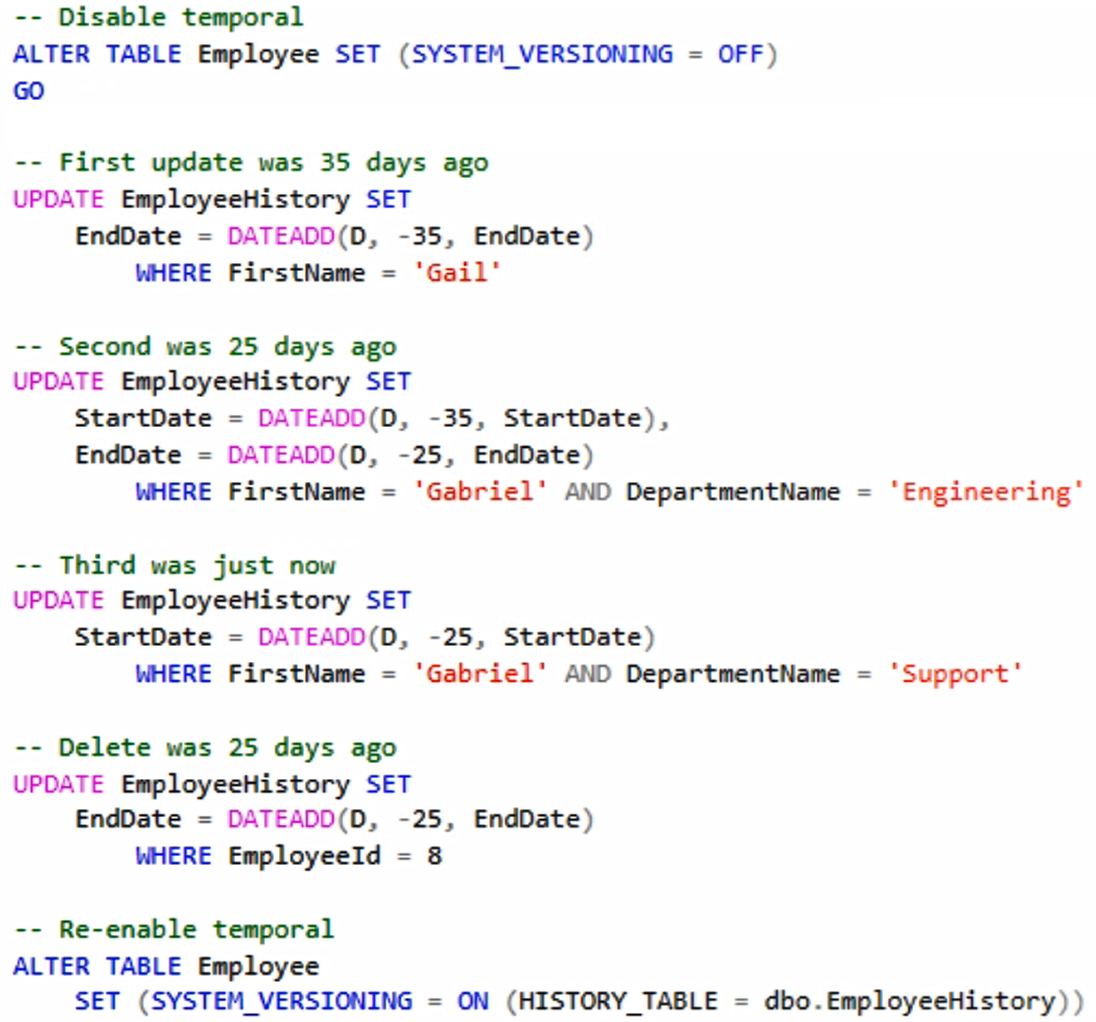
We made our changes only 5 or 6 seconds apart, but to effectively demonstrate temporal, we’ll need to tweak that to simulate longer periods of time between changes. Now caution here, you normally wouldn’t ever touch these columns, and in fact, as long as temporal is enabled, SQL Server won’t permit you to change them. So for demonstration purposes only, I’ll disable temporal, adjust the period columns, and then re-enable temporal. This must be done very carefully so that the start and end dates of each version continue to match up exactly as we’ve seen:

Temporal13

In this code, we first alter the table to disable temporal. Next we update the history table period columns so that the first change, when the FirstName was Gail, actually occurred 35 days ago, and we adjust the EndDate accordingly. The second change, when the FirstName was Gabriel and the DepartmentName was Engineering, let’s say actually occurred 25 days ago. So we adjust the EndDate accordingly, but also the StartDate so that it aligns with the first update from 35 days ago. And the third change, when the FirstName was Gabriel and the DepartmentName was Support occurred just now, so we leave its EndDate alone and only adjust the StartDate so that it aligns with the second update from 25 days ago. We also tweak the deleted row for EmployeeID number 8 so that it appears this row was deleted 25 days ago. Finally, we re-enable temporal on the Employee table.

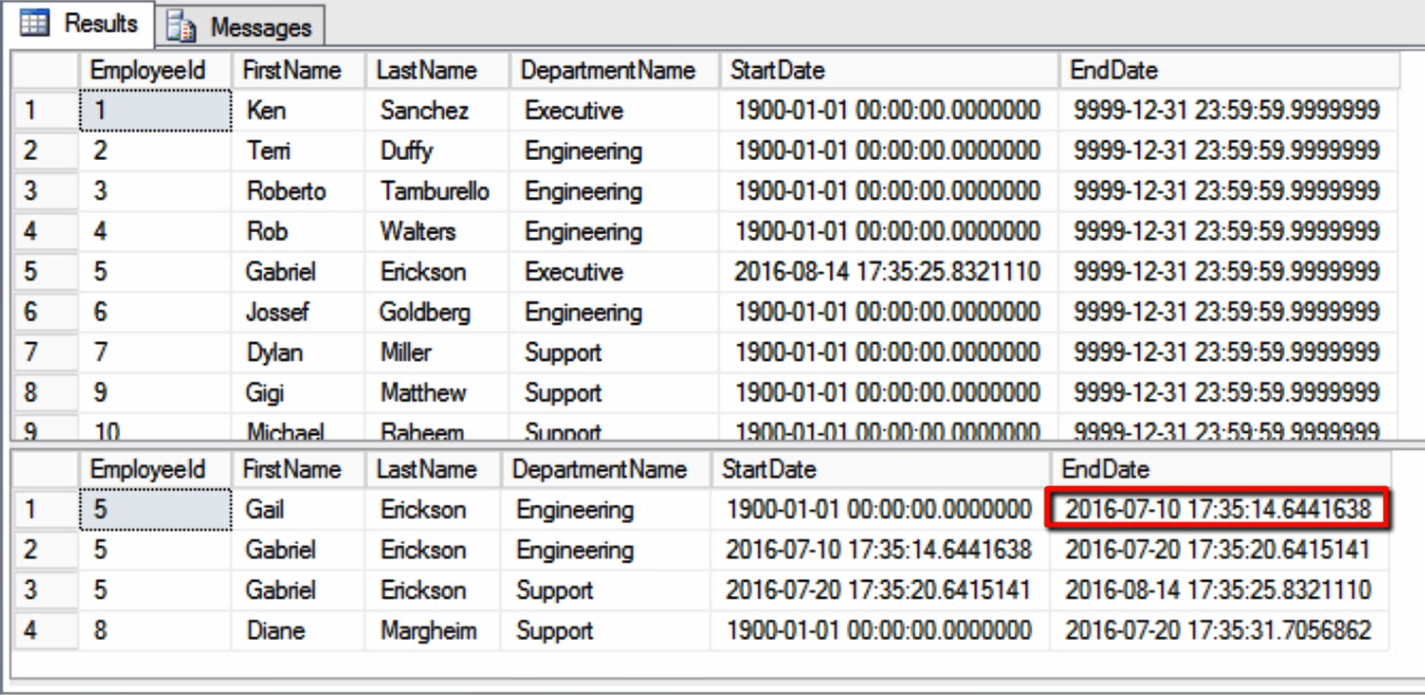
When we look at the data now, it really does look like this table has been around for a while. I’m running this demo today on August 14th, but it’s showing changes from as far back as 35 days ago – where it appears that the first change was made on July 10th. You can also see that our updates have maintained the seamless connection of start and end dates across multiple versions of the same row:

Temporal14

Now we have a table with a history of changes over the past 35 days. And the beauty of temporal is that we can instantly query this table as it appeared at any time during that period. All you do is issue an ordinary SELECT statement, and include the special syntax FOR SYSTEM_TIME AS OF.

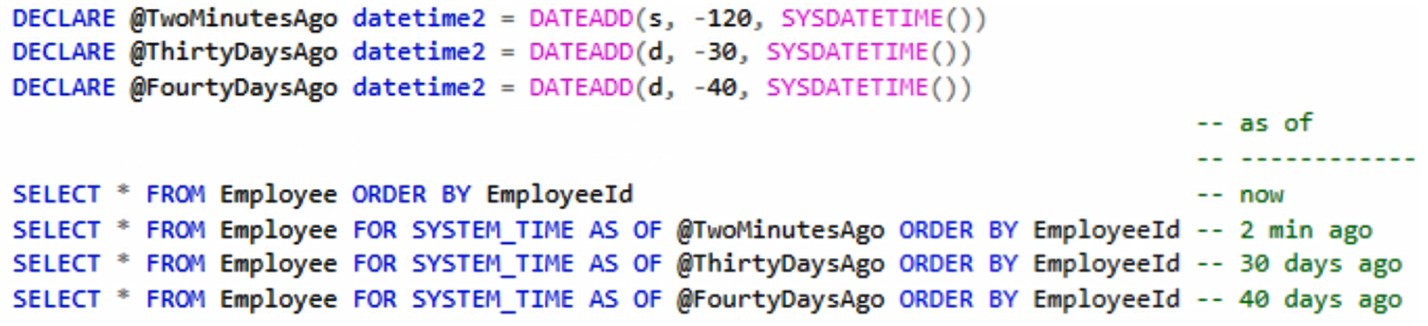
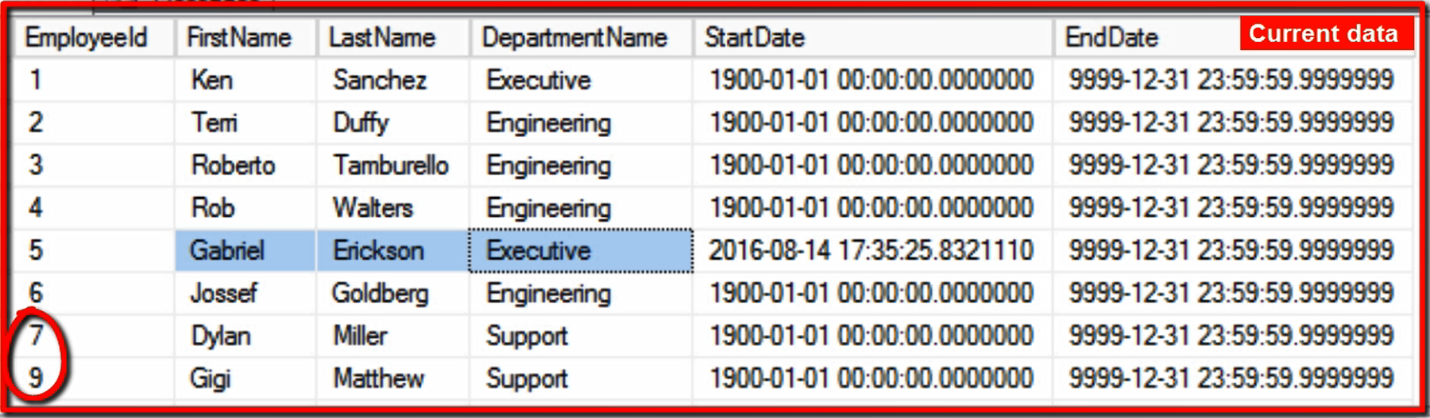
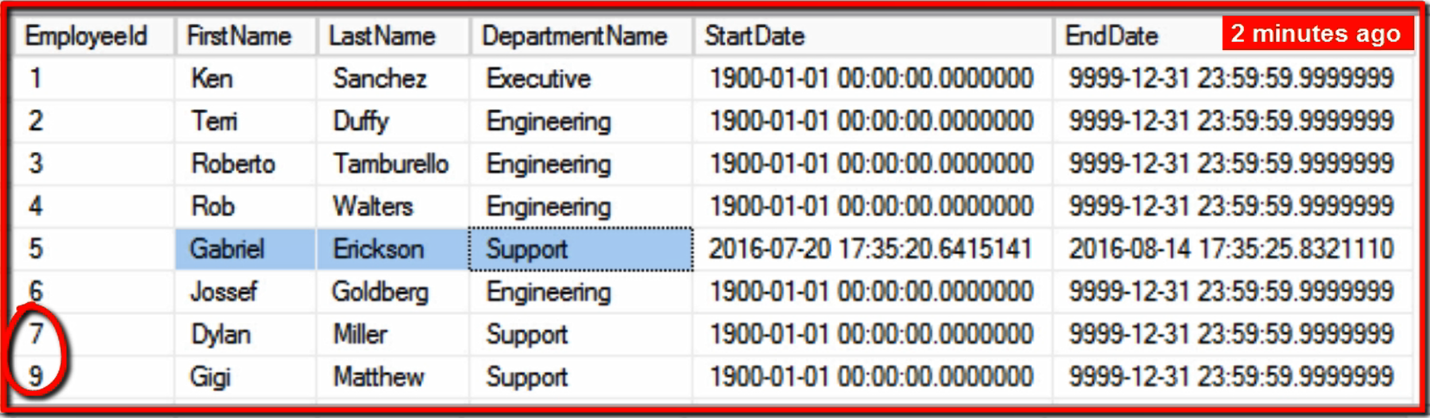
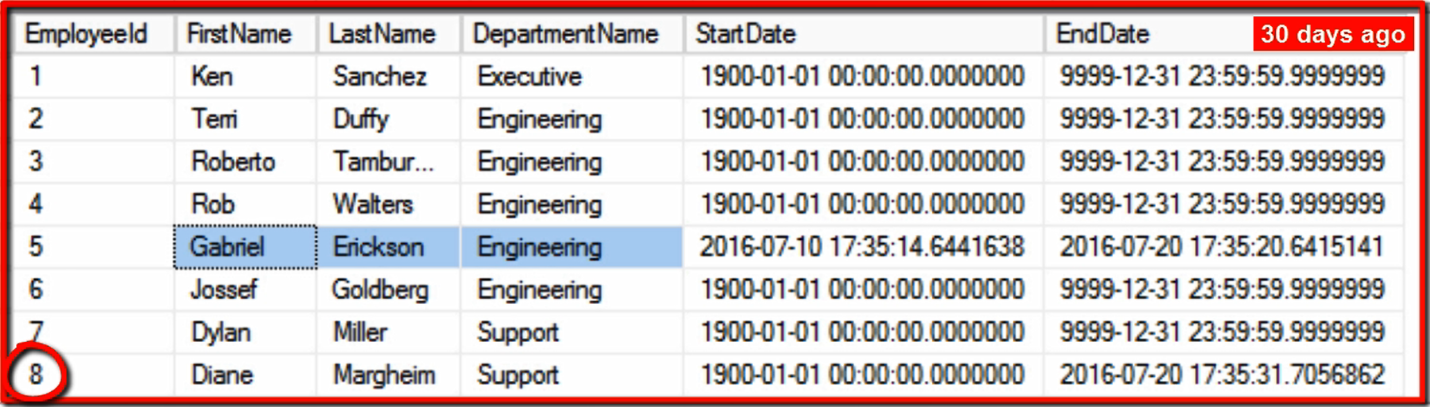
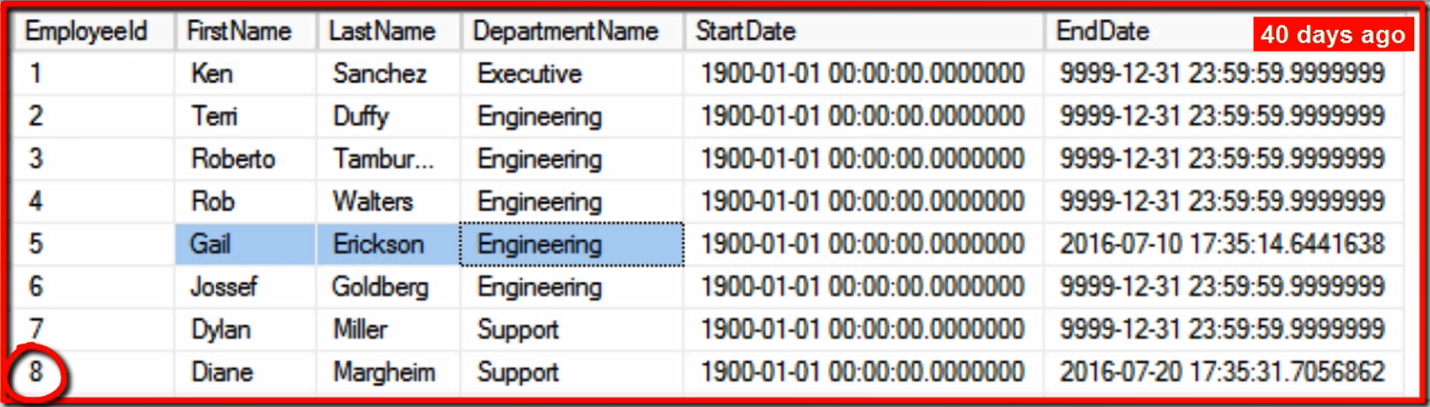
So I’ll run four queries. The first one is an ordinary SELECT that just queries over the current version of the table. But the other three include FOR SYSTEM_TIME AS OF to query the table as it appeared two minutes ago, thirty days ago, and forty days ago:

Temporal15

Let’s inspect the results.

The first query shows current data only, so we see the latest version of EmployeeID number 5, with FirstName Gabriel, and the Department is Executive. We’re also missing EmployeeID number 8, because it’s been deleted:

Temporal16

The second query from two minutes ago shows the same row for Employee ID number 5, but the Department is Support, and this is because we only just recently changed the Department from Support to Executive. But EmployeeID number 8 is still missing, because it was deleted more than just two minutes ago:

Temporal17

The third query is from thirty days ago, so we get an even earlier version of EmployeeID number 5, when the Department was still Engineering. And we also see the deleted row for EmployeeID number 8 miraculously reappear, because it was deleted 25 days ago, and these query results are from 30 days ago:

Temporal18

And finally, the fourth query from 40 days ago shows the very original version of the table before any updates or deletes. We see the original name Gail for EmployeeID number 5, as well as the original row for EmployeeID number 8 that got deleted later on:

Temporal19

As you can see, time travel with temporal tables is pretty awesome. But it doesn’t end here. Stay tuned for a future post that shows how to use the new stretch database feature to transparently migrate part or all of the temporal history table to the cloud on Azure SQL Database.

Until then, happy coding!

Introducing Temporal Tables in SQL Server 2016 (Part 1)

SQL Server 2016 introduces System Version Tables, which is the formal name for the long awaited temporal data feature. In this blog post (part 1) I’ll explain what temporal is all about, and part 2 dives into greater detail on temporal with demos.

Overview

Temporal means, time-related, and in the case of SQL Server, this means that you get point-in-time access to a table, allowing you to query not only the table’s current data, but data as it appeared in the table at any past point in time. So data that you overwrite with one or more update statements, or data that you blow away with a delete statement, is never really lost. It’s always and immediately available simply by telling your otherwise ordinary query to travel back in time when looking at the table.

The mechanism behind this magic is actually rather simple, and completely seamless. SQL Server automatically creates a history table with the same schema as the table enabled for temporal, records every update and delete into that history table along with timestamps for identifying each version of every update or delete. Then, the query engine integrates with the history table and gives you any desired point-in-time access to the temporal table.

Think of all the great uses for this feature.

  • Time travel
    • Being able to query data as it changes over time yields tremendous business value, where temporal tables make it very easy to perform all sorts of trend analysis against your data.
  • Slowly changing dimensions
    • This feature is also very handy when you’re incrementally building large data warehouses with slowly changing dimensions, because the history table always contains data changes that are timestamped.
  • Auditing
    • Temporal tables also give you an inherent auditing solution, when you need to track what data has changed, and when, although it won’t record who made the change.
  • Accidental data loss
    • You know that heart-dropping moment after an update or delete that you really didn’t mean? Well, rather than panic and scramble to find that backup and restore it, you can much more easily recover from your accident by accessing the lost data from the history table.

Using Temporal

It’s pretty easy to get going with temporal, because there are very few pre-requisites. Any table can become a temporal table as long as It has a primary key (which you have in virtually any table), as well as a pair of datetime2 columns, known as the period columns. Given those minimal requirements, you can turn any table into a system versioned table.

SQL Server creates the history table with a schema to match the main table, except that it does not enforce constraints on the history table. This makes sense if you think about it, because multiple versions of the same row, with the same primary key value, will be written to the history table for every change, and so it’s just not possible to enforce the uniqueness of the primary key in the history table.

After creating the history table, SQL Server automatically populates it and preserves the original version of any row affected by an update statement in the main table, as well as retaining any row that gets deleted from the main table. Now certainly, this is nothing that we couldn’t achieve ourselves by writing triggers to do the same thing. However, the real power of a temporal table comes into play at query time. Simply by including the additional syntax FOR SYSTEM_TIME AS OF with a specific point in time in your SELECT statement, SQL Server automatically executes your query against the table – as it appeared at that point in time.

Once enabled for temporal, you continue treating the table pretty much like an ordinary table. In most cases, you can even ALTER the table’s schema, and SQL Server will automatically reflect the schema change in the history table to keep it in sync. However, there are some types of schema changes that won’t be possible unless you first break the temporal connection between the main table and the history table, make the same schema change to both tables in exactly the same manner, and then re-establish the connection between them. Examples of schema changes that require these extra steps include adding an identity column, or a computed column.

Creating a Temporal Table

Here’s an example of a temporal table.

CREATE TABLE Department (
 DepartmentID    int NOT NULL IDENTITY(1,1) PRIMARY KEY,
  DepartmentName  varchar(50) NOT NULL,
  ManagerID       int NULL,
  ValidFrom       datetime2 GENERATED ALWAYS AS ROW START NOT NULL,
  ValidTo         datetime2 GENERATED ALWAYS AS ROW END   NOT NULL,
  PERIOD FOR SYSTEM_TIME (ValidFrom, ValidTo)
)
WITH (SYSTEM_VERSIONING = ON (HISTORY_TABLE = DepartmentHistory))

It’s just like any other table, and includes the two period columns ValidFrom and ValidTo, although these columns can be named anything you like; you just need to add GENERATED ALWAYS AS ROW START and ROW END, and then reference the two columns with PERIOD FOR SYSTEM_TIME. That’s it for the table schema; to actually turn on temporal for the table, we add WITH SYSTEM_VERSIONING = ON, and also set the name for the history table that SQL Server should create, and that must include the schema name; although if you leave out the HISTORY_TABLE name, SQL Server will generate one based on the main table’s internal object ID.

And that’s all there is to it. You just continue working with the table as usual, and SQL Server captures data changes to the history table, and also maintains the date and time for each version of every row.

Querying a Temporal Table

And so, as a result, you can query the table as it appeared at any past point in time simply by including the FOR SYSTEM_TIME AS OF clause like you see here in this example, where the Employee table is being queried as it appeared exactly thirty days ago:

DECLARE @ThirtyDaysAgo datetime2 = DATEADD(d, -30, SYSDATETIME())

SELECT *
 FROM Employee
 FOR SYSTEM_TIME AS OF @ThirtyDaysAgo
 ORDER BY EmployeeId

So any rows that have been deleted in the past thirty days, they’ll be returned by this query. Any new rows created in the past thirty days? Those won’t be returned. And any rows older than thirty days that have been modified in the past thirty days are returned as they appeared exactly thirty days ago. And that’s the magic of temporal tables in SQL Server 2016.

If you want to learn more, check out part 2, Working with Temporal Tables in SQL Server 2016.

SQL Server 2016 Dynamic Data Masking (DDM)

Introducing Dynamic Data Masking (DDM)

In this blog post, I’ll show you how to shield sensitive data from unauthorized users using Dynamic Data Masking, or DDM.

DDM lets you hide data, not by encrypting it, but by masking it. So there are no data changes in your tables. Rather, SQL Server automatically hides the actual data from all query results for users that don’t have permission to see it.

For example, take these query results:

MemberID    FirstName    LastName      Phone        Email
----------- ------------ ------------- ------------ --------------------------
1           Roberto      Tamburello    555.123.4567 RTamburello@contoso.com
2           Janice       Galvin        555.123.4568 JGalvin@contoso.com.co
3           Dan          Mu            555.123.4569 ZMu@contoso.net
4           Jane         Smith         454.222.5920 Jane.Smith@hotmail.com
5           Danny        Jones         674.295.7950 Danny.Jones@hotmail.com

With DDM, you can serve up the same results with the FirstName, Phone, and Email columns masked as follows:

MemberID    FirstName    LastName      Phone        Email
----------- ------------ ------------- ------------ --------------------------
1           Ro...to      Tamburello    xxxx         RXXX@XXXX.com
2           Ja...ce      Galvin        xxxx         JXXX@XXXX.com
3           ...          Mu            xxxx         ZXXX@XXXX.com
4           ...          Smith         xxxx         JXXX@XXXX.com
5           Da...ny      Jones         xxxx         DXXX@XXXX.com

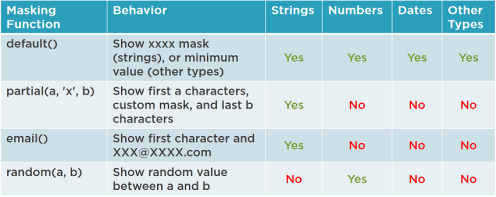
DDM has four pre-defined masking functions:

• default – You can completely hide data with the default function; that is, the function is named default. The default function masks the entire column value returned from the database, so that its completely hidden in the results, and works with virtually any data type.

• partial – The partial function lets you be reveal some, but not all of the underlying data, and it works only with string types. With partial, you can show any number of characters at the beginning of a string, at the end of a string, or at both the beginning and the end of a string. The entire middle portion of the string is hidden, and gets replaced by a custom mask that you supply.

• email – The email function is a bit strange, because it doesn’t really offer anything that you can’t achieve with the partial function. It’s actually just a convenient shorthand for the partial function that exposes only the first character of a string, and masks the rest with XXX@XXXX.com. In no way does the email function examine the string that its masking to see if it’s actually formatted as an email address; so any column you use this function with is going to look like an email address in your query results, regardless.

• random – Finally, the random function is available for numeric columns. Like the default function, it completely hides the underlying value, but unlike default – which hides numeric columns by always masking them with a zero – the random function lets you supply a range of numbers from which a value is randomly chosen every time the data is queried.

As I said, DDM does not physically modify any data in the database. Instead, it masks the data on the fly, as it is queried by users that lack the permission to see the real data. This is a huge win for many common scenarios involving sensitive data; for example, in the healthcare industry, there are strict regulations around the sharing of so-called PHI, or personal health information. These regulations often make it hard to give a developer access to a decent sampling of live production data. DDM helps solve this problem, because administrators can now give developers access to production data, with all the sensitive personal data masked from view – and this is a process that’s often referred to as “anonymizing” the data.

At the same time, because everything is handled internally by SQL Server, there is no additional development effort needed at the application level; there’s no extra code to write, you just define your masks, and you’re done.

Masking Table Columns

DDM is very easy to use. When you create a table with columns that you’d like to mask, you simply include some additional MASKED WITH syntax, to tell SQL Server how to apply the masking:

CREATE TABLE Customer(
  FirstName varchar(20)
    MASKED WITH (FUNCTION='partial(1, "...", 0)'),
  LastName varchar(20),
  Phone varchar(12)
    MASKED WITH (FUNCTION='default()'),
  Email varchar(200)
    MASKED WITH (FUNCTION='email()'),
  Balance money
    MASKED WITH (FUNCTION='random(1000, 5000)'))

In this example, we’re using the partial function to partially mask the first name column. Specifically, the first parameter reveals just the first character of the first name, the second parameter is the custom mask to follow the first character with three dots, and the last parameter tells SQL Server to reveal none of the end characters of the first name. Using the default function for the phone column completely hides the phone number, the email function reveals the first character of the email column, followed by the mask XXX@XXXX.com, and the random function is being used here to randomly mask the Balance column with numbers between one-and-five-thousand.
If you already have a table with columns that you’d like to mask, it’s just as easy. Simply use the ADD MASKED WITH syntax with an ALTER TABLE, ALTER COLUMN statement, like so:

ALTER TABLE Customer
  ALTER COLUMN LastName
    ADD MASKED WITH (FUNCTION='default()')

Masking Different Data Types

The way a column gets masked by DDM depends on two things:

  • the masking function that you use
  • the data type of the column that you’re masking

DDM table

The default function is the only function that works with virtually all data types. In the case of a string column, it uses a hardcoded mask of four lower-case x’s, which is effectively the same as supplying a mask of four lower-case x’s to the partial function, without revealing any starting or ending characters. In the case of the other data types, DDM masks the column using an appropriate replacement value for that type; for example, using a zero for numeric data types, or January first 1900 for a date type. The default function can also be used to mask many of the more specialized data types, such as XML, binary and spatial columns, for example.

The partial function works only with string columns; meaning varchar, char, and text columns, as well as their Unicode version counterparts. This function accepts the three parameters I described on the previous slide, giving you control over how much or little gets exposed from the start and end of the string, and the custom mask to embed in the middle.

The email function also works only with string columns, and simply reveals just the first character of the string, followed by the mask XXX@XXXX.com, using upper-case X’s.

And finally, the random function works only with numeric columns, meaning for example int, bigint, short, money, decimal, and even bit. Use the random function instead of the default function to mask numeric columns, when you’d like to manufacture values that are semi-realistic, and not just zeros.

Discovering Masked Columns

To find out which columns in which tables are being masked, you can query sys.columns which now includes an is_masked and masking_function column to tell you if a column is being masked, and if so, the function being used to mask that column.

SELECT
  t.name AS TableName,
  mc.name AS ColumnName,
  mc.masking_function AS MaskingFunction
FROM
  sys.masked_columns AS mc
  INNER JOIN sys.tables AS t ON mc.[object_id] = t.[object_id]

Or, it’s even easier to query the new sys.masked_columns view, which internally, queries from sys.columns and filters to return only the masked columns; that is, where is_masked is set to 1, for true.

Mask Permissions

Dynamic data masking is based purely on the permissions that are either granted to a given user, or not.

So first, no special permission is actually required to create a new table, and define it with masked columns.  As for existing tables, the ALTER ANY MASK permission is required for a user to add a mask to an unmasked column, or to change or remove the mask of an already masked column.

The UNMASK permission is the big one, because it effectively ignores any masking defined for any columns. This is the permission that you want to be certain not to grant to users that should only view masked data; for example, you would be sure not to grant developers the UNMASK permission when supplying production data for them to use as sample data.

No special permission is needed to insert or date data in a masked column. So DDM effectively behaves like a write-only feature in the sense that a user has the ability to write data that they themselves will not be able to read back unless they also possess the UNMASK permission.

DDM Limitations and Considerations

There are a few things to keep in mind when you’re working with DDM. Although DDM does support most data types – even some of the highly specialized data types that are very often not supported by other SQL Server features – some columns cannot be masked. So while DDM can mask BLOB data stored in varbinary(max) columns, it cannot mask those columns if they are also decorated with the FILESTREAM attribute, which enables highly scalable BLOB storage in SQL Server.

Also, you can also not mask sparse columns that are part of a COLUMN_SET, or computed columns, although you can still create computed columns that are based on masked columns, in which case the computed column value will get masked as a result.

Keys for FULTEXT indexes can’t be masked, and finally columns that have been encrypted using the new Always Encrypted feature in SQL Server 2016 (which I’ll cover in a future blog post) cannot be masked.

It’s also important to remember that there is no way to ever derive the unmasked data once it has been masked. So even though SQL Server doesn’t actually modify the underlying data for masked columns, and ETL process – for example – that queries SQL Server and receives masked data, will wind up loading the target system with that masked data, and the target system will have no means of ever knowing what the unmasked data is.


Sharing State in SQL Server 2016 with SESSION_CONTEXT

If you’ve ever wanted to share session state across all stored procedures and batches throughout the lifetime of a database connection, you’re going to love SESSION_CONTEXT. When you connect to SQL Server 2016, you get a stateful dictionary, or what’s often referred to as a state bag, some place where you can store values, like strings and numbers, and then retrieve it by a key that you assign. In the case of SESSION_CONTEXT, the key is any string, and the value is a sql_variant, meaning it can accommodate a variety of types.

Once you store something in SESSION_CONTEXT, it stays there until the connection closes. It is not stored in any table in the database, it just lives in memory as long as the connection remains alive. And any and all T-SQL code that’s running inside stored procedures, triggers, functions, or whatever, can share whatever you shove into SESSION_CONTEXT.

The closest thing like this we’ve had until now has been CONTEXT_INFO, which allows you to store and share a single binary value up to 128 bytes long, which is far less flexible than the dictionary you get with SESSION_CONTEXT, which supports multiple values of different data types.

SESSION_CONTEXT is easy to use, just call sp_set_session_context to store the value by a desired key. When you do that, you supply the key and value of course, but you can also set the read_only parameter to true. This is locks the value in session context, so that it can’t be changed for the rest of the lifetime of the connection. So, for example, it’s easy for a client application to call this stored procedure to set some session context values right after it establishes the database connection. If the application sets the read_only parameter when it does this, then the stored procedures and other T-SQL code that then executes on the server can only read the value, they can’t change what was set by the application running on the client.

How do you extract a value out of session context? Well, by using the SESSION_CONTEXT function of course. You supply the key, and the function returns the value. But remember, it returns this as a sql_variant, so you’ll usually need to cast or convert the value into whatever data type you need, like a varchar, int, or date.

Let’s demonstrate with a quick example.

First I’ll create this stored procedure that does something. And to do it, the stored procedure needs to know the region, but it doesn’t get the region using a parameter. Instead, it calls the new SESSION_CONTEXT function, requesting the value keyed as UsRegion, which we cast to a varchar(20) using CONVERT.

CREATE PROCEDURE DoThis AS
BEGIN
	DECLARE @UsRegion varchar(20) = CONVERT(varchar(20), SESSION_CONTEXT(N'UsRegion'))
	SELECT DoThis = @UsRegion
END

And here’s another stored procedure that also takes no parameters, and gets the region from session_context.

CREATE PROCEDURE DoThat AS
BEGIN
	DECLARE @UsRegion varchar(20)
	SET @UsRegion = CONVERT(varchar(20), SESSION_CONTEXT(N'UsRegion'))
	SELECT DoThat = @UsRegion
END

Both these procedures are expecting some earlier code to store the desired region into session context. Until that happens, SESSION_CONTEXT simply returns NULL.

EXEC DoThis
EXEC DoThat

DoThis
--------------------
NULL

DoThat
--------------------
NULL

So Let’s call sp_set_session_context, and set the region to Southwest.

EXEC sp_set_session_context @key = N'UsRegion', @value = N'Southwest'

Now when we call the procedures, they both get Southwest from the session context.

EXEC DoThis
EXEC DoThat

DoThis
--------------------
Southwest

DoThat
--------------------
Southwest

Now before moving on to change the value, let’s first see that the value persists only for the lifetime of the connection. Run it a few more times, and you can see it’s still returning Southwest, but then close the connection and open a new one. Now running the stored procs again, the region is NULL, because session context is empty.

EXEC DoThis
EXEC DoThat

DoThis
--------------------
NULL

DoThat
--------------------
NULL

Now call sp_set_session_context again to change the region to Northeast,

EXEC sp_set_session_context @key = N'UsRegion', @value = N'Northeast'

And the procedures show Northeast, just as expected:

EXEC DoThis
EXEC DoThat

DoThis
--------------------
Northeast

DoThat
--------------------
Northeast

Change it once more to Southeast, only this time, also set the readonly parameter to true. This prevents the value from being changed again during this session:

EXEC sp_set_session_context @key = N'UsRegion', @value = N'Southeast', @read_only = 1

And the change is reflected when we run the procedures again:

EXEC DoThis
EXEC DoThat

DoThis
--------------------
Southeast

DoThat
--------------------
Southeast

Finally, try to change the region to Northwest:

EXEC sp_set_session_context @key = N'UsRegion', @value = N'Northwest'

You see that we can’t. because it’s locked in session context:

Msg 15664, Level 16, State 1, Procedure sp_set_session_context, Line 27
Cannot set key 'UsRegion' in the session context. The key has been set as read_only for this session.

There’s absolutely no way the value can be changed unless you kill the connection like we saw earlier, in which case of course you lose all the values in session context.

Just DIE Please! Introducing Drop If Exists (DIE) in SQL Server 2016

In SQL Server 2016, Drop If Exists (DIE) is a handy new T-SQL language enhancement that eliminates the need to test before you drop.

So, if you need to delete a table, or a stored procedure, but you don’t know if it exists or not, then you’re used to writing code that says, “If the table exists, then drop it,” or “if the stored procedure exists, then drop it.” We’ve all been writing code like this for years, but that doesn’t mean it’s been fun:

• IF OBJECT_ID('dbo.Product', 'U') IS NOT NULL
   DROP TABLE dbo.Product

• IF EXISTS (SELECT * FROM sys.triggers WHERE name = 'trProductInsert')
   DROP TRIGGER trProductInsert

So now, thankfully, we can leave the testing to SQL Server:

• DROP TABLE IF EXISTS dbo.Product

• DROP TRIGGER IF EXISTS trProductInsert

It doesn’t get much simpler than this. It’s really just an ordinary DROP statement; you just inject the new syntax IF EXISTS in the middle, and you’re done.

This new feature is available for just about anything you need to drop, so not just tables and triggers, but all of the following:

  • AGGREGATE
  • ASSEMBLY
  • DATABASE
  • DEFAULT
  • INDEX
  • PROCEDURE
  • ROLE
  • RULE
  • SCHEMA
  • SECURITY POLICY
  • SEQUENCE
  • SYNONYM
  • TABLE
  • TRIGGER
  • TYPE
  • VIEW

So no, DIE isn’t really any major new big feature, but if you like neat code – as I do – then it’s welcome just the same.

Overview of New SQL Server 2016 Developer Features

Every new version of SQL Server is packed with new features, and SQL Server 2016 is no exception. In this blog post, I briefly describe the major new developer focused features introduced in SQL Server 2016. I’ll cover many of these features in greater depth, in upcoming posts.

• Drop If Exists is a small but convenient language enhancement which helps you write neater T-SQL code, because you no longer need to test if an object exists before deleting it.

• SESSION_CONTEXT gives you a dictionary object that maintains its state across the lifetime of the database connection, so it’s a new easy way to share state across stored procedures running on the server, and even to share state between the client and the server.

• With Dynamic Data Masking, or DDM, you can shield sensitive information in your tables from unauthorized users by masking them, and this works purely with permissions, without ever modifying the actual data in the table.

• Row-Level Security, or RLS, lets you hide different rows for different users, based on your own custom criteria. The hidden rows are automatically filtered out of all queries that get issued against the table, and you can also block users from inserting, updating, or deleting rows according to your needs.

• Always Encrypted lets you encrypt data that is never decrypted in any location other than the client. By using client-side certificates to perform client-side encryption and decryption, the data is always encrypted – not just on disk, but in-flight, as it traverses the network.

• With Stretch DB, you can keep using your own data centers and SQL Servers to host and manage your data, but still allow tables you designate for remote data archive to be migrated to the cloud on Azure SQL Database. So you keep your hot data on-premises, but let your cold data stretch out to the cloud, completely transparently.

• Temporal data is an exciting new feature that automatically tracks changes made to a table, and records those changes to a history table. Then, the query engine integrates with the history table and gives you this almost magical experience of time-travel, where you can run a query against a table as it appeared at any point in time of the past.

• JSON support. XML support first appeared back in SQL Server 2000, and then got a major boost in 2005 with the native XML data type. Today, JSON is the new XML, and SQL Server 2016 provides JSON support very similar to what’s possible with XML. You can shred, store, query, and manipulate JSON documents in just about any way you need to, in SQL Server 2016.

• Hekaton improvements – QL Server 2014 introduced In-Memory OLTP, which many still call by its code name, “Hekaton.” Hekaton can dramatically boost performance by migrating from traditional disk-based tables to newer memory-optimized tables. The technology is compelling, but the initial release in 2014 carried a lot of limitations, and the most egregious ones have been removed in 2016.

• PolyBase – We’re living in a world of big data, where increasingly, massive amounts of information is being stored in large No-SQL stores such as Hadoop and Azure Blob Storage. PolyBase is a new feature in that lets you integrate with both Hadoop and Azure Blob Storage. By defining external tables that map to these No-SQL environments, you can write T-SQL queries that seamlessly retrieves data from them, and can even push portions of the query down to execute on Hadoop as a compute job.

• The new QueryStore feature will cache execution plans, and capture the performance of the same query over time. This is a great tool when you’re trying to troubleshoot the performance of a query that once had a good execution plan, but no longer does because of some environmental change, say some change in table statistics. With query store, you can much more easily identify that change, and make the necessary adjustments to ensure that your SQL Server continues to devise good execution plans.

• R Integration – R is an analytic programming language that has grown very popular over recent years, and now SQL Server 2016 introduces R services. This lets you write code in R and run it right inside the database engine itself. This is a huge win for data scientists who will no longer need to first extract their data out of SQL Server before they can analyze it with R; instead, they can bring their R code right to the data, and let it run there.

Stay tuned for upcoming posts for more detailed coverage on these awesome new SQL Server features!

Integrating Document BLOB Storage with SQL Server

NoSQL platforms can support highly scalable databases with BLOB attachments (images, documents, and other files), but if you think you need to embrace a NoSQL solution in lieu of SQL Server just because you have a high volume of BLOBs in your database, then think again. Sure, if you have good reasons to go with NoSQL anyway – for example, if you want the flexibility of schema-free tables, and you can accept the compromises of eventual transactional consistency – then NoSQL can fit the bill nicely.

But critical line-of-business applications often can’t afford the relaxed constraints of NoSQL databases, and usually require schemas that are strongly typed, with full transactional integrity; that is, a full-fledged relational database system (RDBMS). However, relational database platforms like SQL Server were originally designed and optimized to work primarily with structured data, not BLOBs. And so historically, it’s never been feasible to store large amounts of BLOB data directly in the database. That is, until FILESTREAM.

With FILESTREAM, Microsoft addresses the dilemma of storing BLOBs within the relational database. My new Pluralsight course, SQL Server 2012-2014 Native File Streaming, explains this innovative feature in detail, and in this blog post, I’ll discuss how FILESTREAM (and its related technologies) can be used to implement a highly-scalable BLOB storage solution that’s fully integrated with a relational SQL Server database. You’ll also find live demos on everything covered by this post in the course.

Introducing FILESTREAM

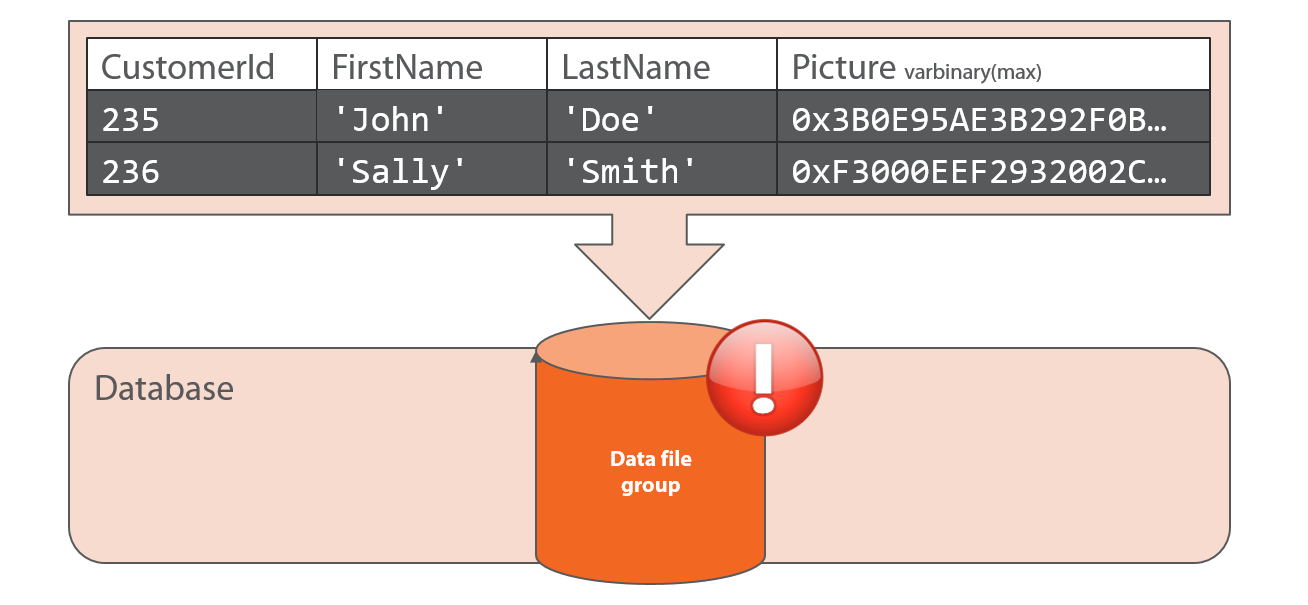
Although SQL Server was never originally intended to handle BLOBs in large scale, this is no longer true as of FILESTREAM (introduced in SQL Server 2008). Before FILESTREAM, SQL Server was forced to shove BLOBs into the standard database filegroups, which are really optimized for storing structured row data in 8k pages. Because BLOBs don’t fit naturally within this structure, they must be pushed into off-row storage, which bloats the structured filegroups, and ultimately kills performance.

FS1b

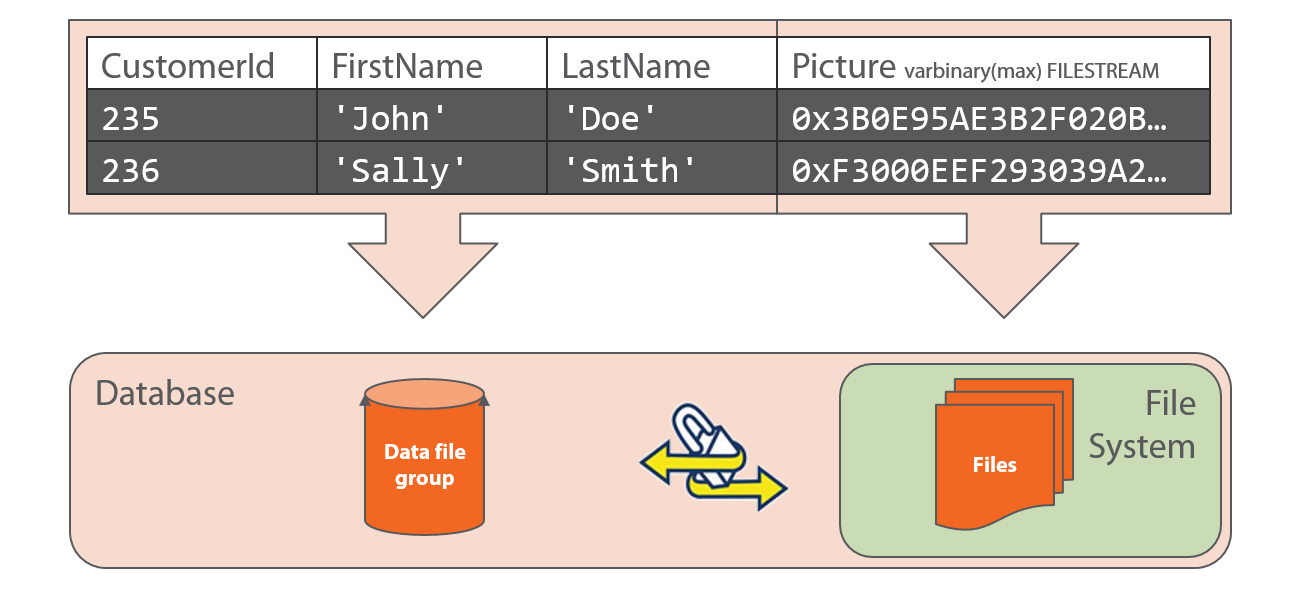
FILESTREAM changes all that. First, to be clear, FILESTREAM is not actually a data type. Rather, it’s an attribute that you apply to the varbinary(max) data type, the same data type that you would use to store BLOBs directly inside the row. But by merely appending the FILESTREAM attribute to the varbinary(max) data type, SQL Server takes a radically different approach to physical BLOB storage. Rather than inundating the standard database filegroups with BLOBs, SQL Server stores BLOB content as files in the file system – where they belong; the file system being a native environment optimized for storing and streaming unstructured binary content. At the same time, it establishes and maintains reference pointers between the rows in the standard filegroups and the files in the file system that are tied to varbinary(max) columns in those rows. All this magic occurs behind the scenes, and is totally transparent to any existing code that works with ordinary varbinary(max) columns.

FS2

In this manner, the BLOB data is physically stored separately from structured row data, but it is logically an integral part of the database. So for example, backing up the database includes the BLOB data, with the option of performing a partial backup that excludes the FILESTREAM filegroup when you want to create smaller backups that don’t include BLOB data.

Furthermore, this solution provides full transactional consistency – because FILESTREAM integrates with the NTFS file system, and NTFS is a transactional file system. So when you start a database transaction and insert a row, and that row includes BLOB data stored in a varbinary(max) FILESTREAM column, then SQL Server automatically initiates an NTFS file system transaction over that BLOB data. Then, the fate of the file system transaction hinges on the fate of the database transaction. If and when the database transaction commits, then SQL Server will also commit the NTFS file system transaction; similarly, rolling back the database transaction automatically rolls back the NTFS transaction.

Accessing BLOBs with T-SQL

With FILESTREAM, you can treat BLOBs as ordinary varbinary(max) columns in T-SQL. For example, you can use the OPENROWSET function with the BULK provider to import an external file into a varbinary(max) column, and if that column is decorated with the FILESTREAM attribute, then SQL Server will automatically store a copy of that file as a BLOB in the NTFS file system behind the scenes, rather than force-fitting it into the standard database filegroups.

For example:

INSERT INTO PhotoAlbum(PhotoId, PhotoDescription, Photo)
  VALUES(
    3,
    'Mountains',
    (SELECT BulkColumn FROM OPENROWSET(BULK 'C:\Demo\Ascent.jpg', SINGLE_BLOB) AS x))

To retrieve BLOBs, it’s a simple SELECT:

SELECT * FROM PhotoAlbum

FS3

Using SqlFileStream and the Streaming API

Although FILESTREAM delivers scalable storage by leveraging the NTFS file system behind the scenes, BLOB access needs to scale as well. It’s great that you can enjoy total transparency by just using T-SQL access, but stop for a moment and think about what SQL Server needs to do when retrieving BLOBs with T-SQL. In order to serve up the Photo column in the resultset shown above for the SELECT statement, for example, SQL Server needed to read the entire contents of each BLOB from the NTFS file system that it’s managing internally, and this can easily and suddenly place a great deal of memory pressure on the server.

To address this concern, FILESTREAM exposes the streaming API. When you use this API, SQL Server still manages the file system behind the scenes, only it shifts the burden and memory requirements of actually reading and writing BLOBs in the file system off of itself and onto the client application. This keeps the memory requirements on SQL Server very lean, regardless of how large your BLOBs may be.

The SqlFileStream class is a managed code wrapper around the streaming API, which makes it extremely easy to use from .NET. In C# or VB .NET, you start a database transaction and issue an INSERT statement, but you don’t actually include the BLOB content with the INSERT statement. Instead, SQL Server passes you back the information you need to create a SqlFileStream object. This object inherits from the base System.IO.Stream class, meaning that it supports all the standard read/write methods of standard .NET stream classes, including memory streams, HTTP request/response streams, and local file streams. So it’s easy to then stream your BLOBs in and out, using buffers in memory allocated to your application – not SQL Server. Then, you just commit the database transaction, and SQL Server automatically commits the NTFS file system transaction at the same time.

In my course, I show you SqlFileStream up close, and demonstrate how to program against the streaming API from a thick client application, a client/server (Web) application, and in an n-tier (WCF) scenario as well.

Introducing FileTable

The FILESTREAM story only gets better with FileTable, added in SQL Server 2012. While FILESTREAM revolutionizes BLOB storage in SQL Server, it’s only accessible to developers and administrators. What about ordinary users? They’re certainly not going to write T-SQL or streaming API code to access BLOBs. And there’s also no way for ordinary client applications to access FILESTREAM data.

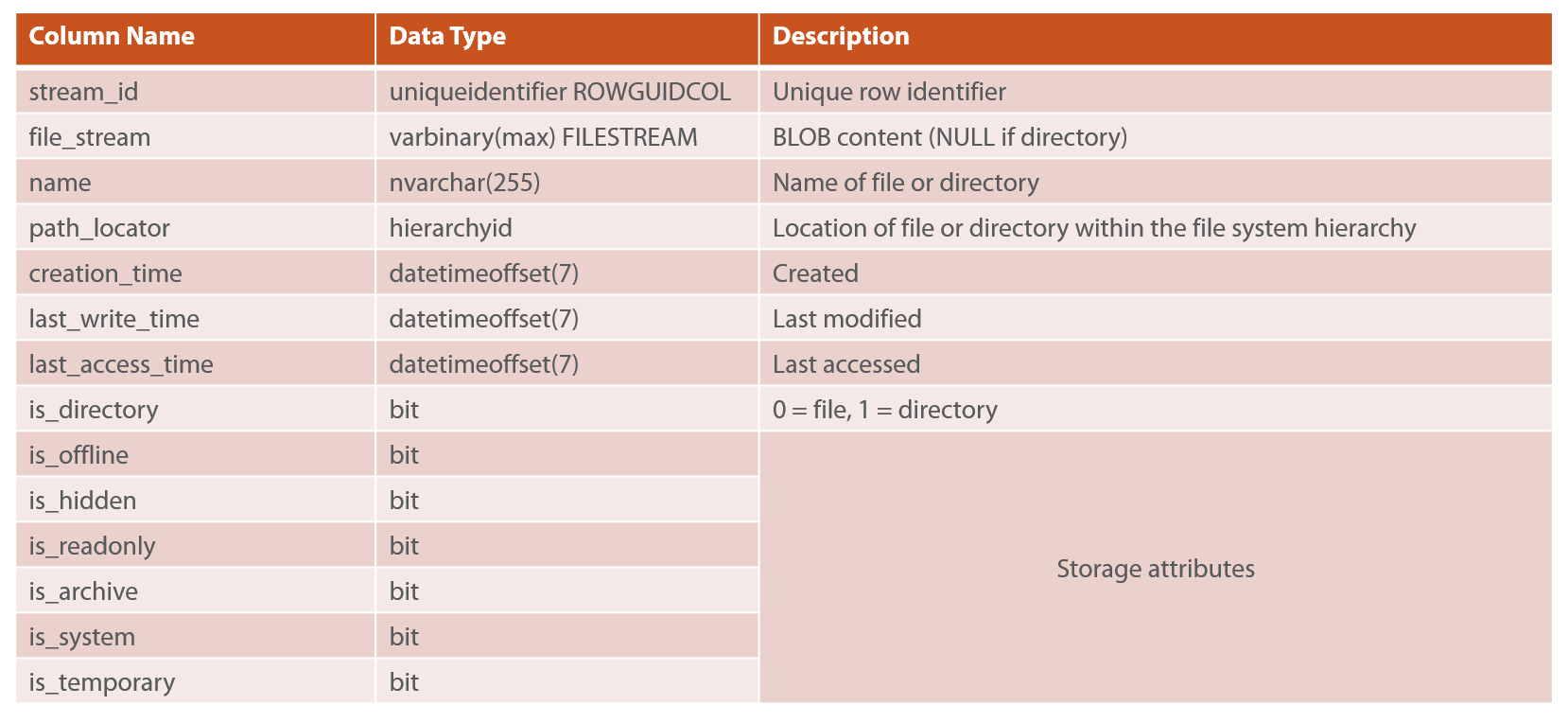
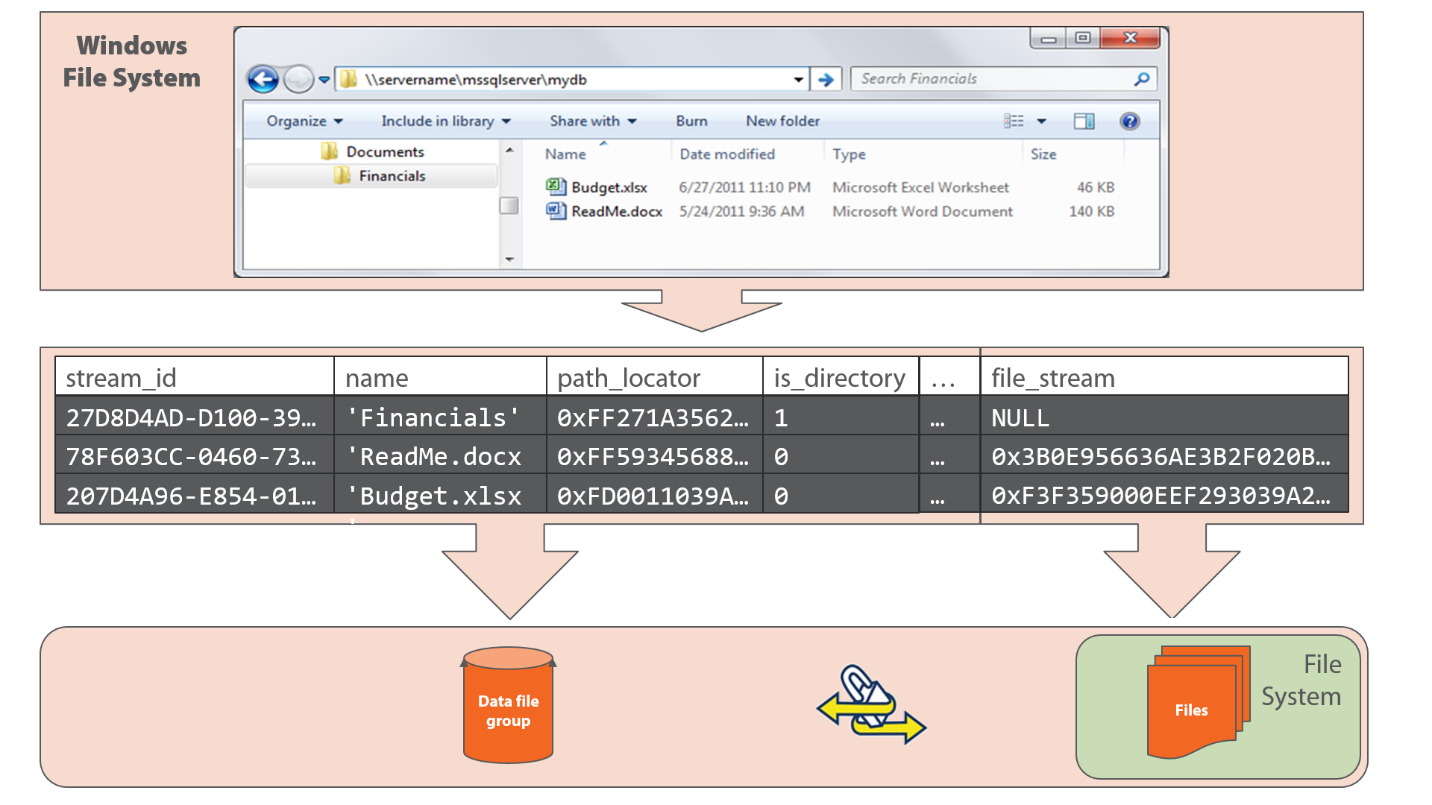
The solution is FileTable, which combines FILESTREAM with the hierarchyid data type to furnish an “emulated” file system; that is, a file system that users and applications can work with, but which is really a FileTable in a SQL Server database. A FileTable is just a regular table except that it has a fixed schema; specifically, it has these pre-determined columns for the metadata of the emulated file system:

FS4

Every row in a FileTable represents either a file or a folder (depending on the is_directory column), and the hierarchyid value in the path_locator column is what implements the folder structure of the emulated file system. The hierarchyid data type has methods that you can use to query and manipulate the structure; for example, you can programmatically move entire subtrees from one parent to another.

For rows that represent files, the file_stream column holds the actual BLOB, and this is a varbinary(max) FILESTREAM column. So behind the scenes, it is stored in the NTFS file system just like a varbinary(max) FILESTREAM column of an ordinary table (a non-FileTable) would be.

And so, in addition to being able to use T-SQL or the streaming API with a FileTable, the emulated file system that a FileTable represents also gets exposed to users and client applications via a Windows file share. As a result, changes made to the table in the database are reflected in the emulated file system, and conversely, changes made to the emulated file system by users or client applications are reflected automatically in the database, which ultimately pushes down into the physical NTFS file system being used for BLOB storage behind the scenes.

FS5

Summary

This blog post explained FILESTREAM, and its related feature, FileTable. We first saw how FILESTREAM supports scalable BLOB storage using the NTFS file system behind the scenes, and provides transparent T-SQL access using the varbinary(max) data type. We also learned about the streaming API and SqlFileStream, which shifts the burden and memory requirements for streaming BLOBs off of SQL Server and onto client applications, providing scalable BLOB access. And we finally saw how FileTable combines FILESTREAM with the hierarchyid data type to furnish an emulated file system on the front end that users and client applications can interact with, but which in actuality is just a table in the database.

And so, with FILESTREAM, line-of-business applications can embrace scalable BLOB integration without being forced to consider a NoSQL alternative to SQL Server.

Downloading SQL Server Express Edition

I’m often asked how to install SQL Server Express Edition, and what the different download options are. So I finally decided to explain it all in this blog post.

There are several SQL Server Express Edition downloads available on the Microsoft site, and they are available in both 32-bit and 64-bit versions. You can choose to install just the SQL Server Express database engine (and nothing else), or you can choose one of two other (larger) downloads: Express With Tools (which includes SQL Server Management Studio [SSMS]) or Express With Advanced Services (which includes SSMS, Full Text Search, and Reporting Services). There are also separate downloads for SSMS and LocalDB, but these do not include the SQL Server Express database engine needed to host local databases.

To install the SQL Server Express Edition database engine, follow these steps:

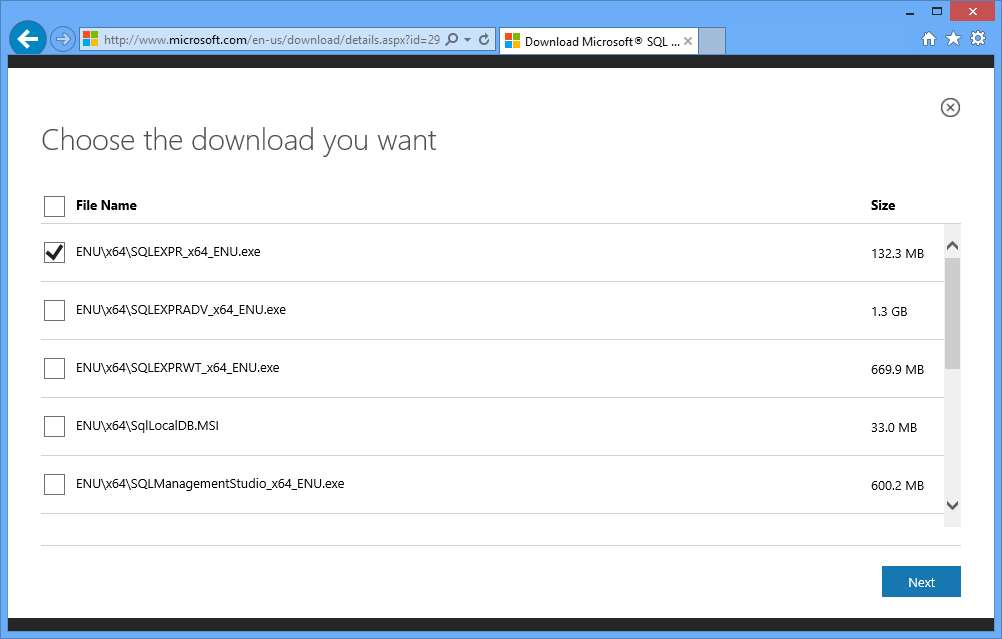
  1. Open Internet Explorer, and navigate to http://www.microsoft.com/en-us/download/details.aspx?id=29062.
  2. Click the large orange Download button.
  3. Select the appropriate download for your system.
    1. For 64-bit systems, choose ENU\x64\SQLEXPR_x64_ENU.exe.
    2. For 32-bit or 64-bit WoW systems, choose ENU\x86\SQLEXPR32_x86_ENU.exe.
    3. For 32-bit systems, choose ENU\x86\SQLEXPR_x86_ENU.exe.Note If you need to download SQL Server Management Studio (SSMS) as well, choose the Express With Tools file instead, which is the one that includes WT in the filename.
      F00xx01
  4. Click Next.
  5. If you receive a pop-up warning, click Allow Once.
    F00xx02-markedup
  6. When prompted to run or save the file, choose Run. This starts and runs the download.
  7. If the User Account Control dialog appears after the download files are extracted, click Yes.
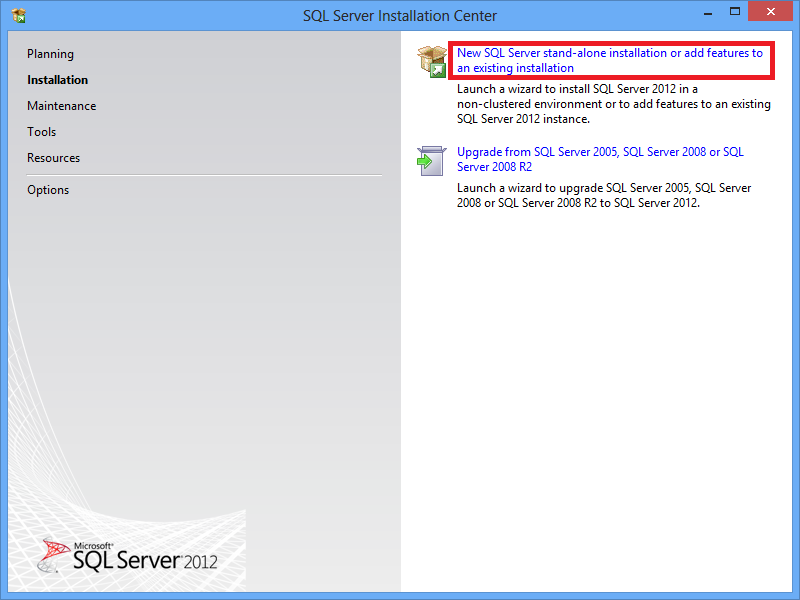
  8. In the SQL Server Installation Center, click New SQL Server Stand-Alone Installation.
    F00xx03-markedup
  9. In the SQL Server 2012 Setup wizard, do the following:
    1. On the License Terms page, select I Accept The License Terms and click Next.
    2. On the Product Updates page, allow the wizard to scan for updates, and then click Next.
    3. On the Install Setup Files page, wait for the installation to proceed.
    4. On the Feature Selection page, Click Next.
    5. Continue clicking Next through all the remaining pages until the Installation Progress page, and wait for the installation to proceed.
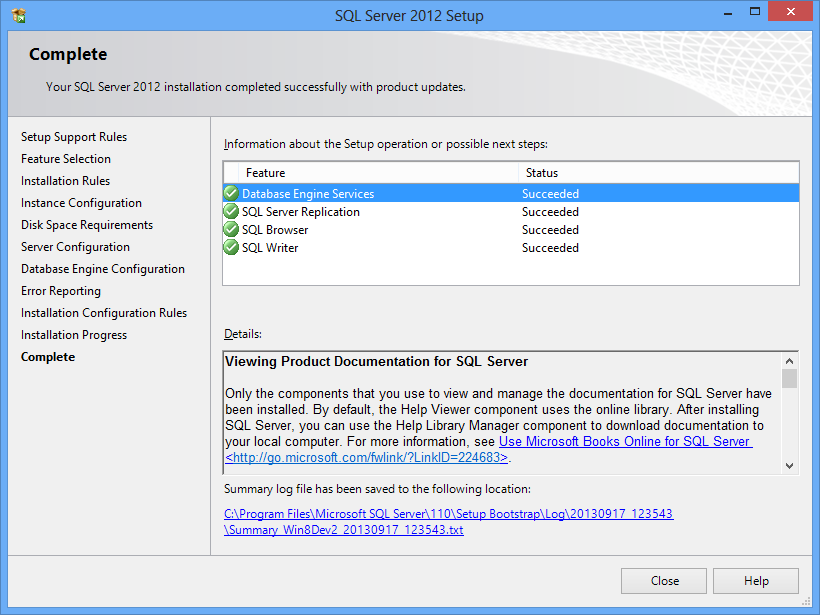
    6. On the Complete page indicating a successful setup, click Close.
      F00xx04

I hope these instructions help you choose the right installation option for SQL Server Express Edition!