

Overview
Protecting your data is critical, and Cosmos DB goes a long way to provide redundancy so you get continuous uptime in the face of hardware failures, or even if an entire region suffers an outage. But there are other bad things that can happen too – notably, any form of accidental corruption or deletion of data – and that’s why Cosmos DB has comprehensive backup and restore features.
There are actually two versions of this feature you can choose from; periodic backups, and continuous backups.
Periodic backups are the default, and they are both automatic and free. Meaning that, at regular intervals, Cosmos DB takes a backup of your entire account, and saves it to Azure Blob Storage, always retaining at least the two most recent backups. This occurs without absolutely zero impact on database performance, and with no additional charges to your Azure bill.
Backups are retained for 8 hours by default, but you can request retention for up to 30 days if you need. However, this is where you begin to incur charges for periodic backups, since the longer you retain backups, the more snapshot copies need to be kept in Azure Blob Storage – and only the first two are free. So depending on how frequently you set the backup interval, and how long you request backup retention – Cosmos DB may keep anywhere from 2 to 720 snapshots in Azure Blob Storage available for restore.
In the unfortunate event that you do need a restore, you do that by opening a support ticket in the portal, and I’ll show you what that looks like in a moment.
Your other option is to use continuous backup, which does cost extra, but lets you perform a point-in-time restore – meaning, you can restore your data as it was at any point in time within the past 30 days, and you don’t deal with intervals, snapshots, and retention.
Continuous backup carries a few limitations – at least right now, you can use it only with the SQL and Mongo DB APIs. And while it does work with geo-replicated accounts, it doesn’t work if you’ve enabled multi-master; that is, multi-region writes – it needs to be a single-write region account.
If you need to restore data to an account using continuous backups, you can do it yourself right inside the Azure portal. You don’t need to open a ticket with the support team, like you do with periodic backups.
Periodic Backups
As I said, periodic backup is the default backup mode, and it can be configured at the same time you create a new Cosmos DB account. Here in the Backup Policy tab for a new account, we see periodic backup is selected by default, to automatically take backups every 4 hours (that’s 240 minutes) and retain them for 8 hours. This results in 2 copies always being retained at any given time.
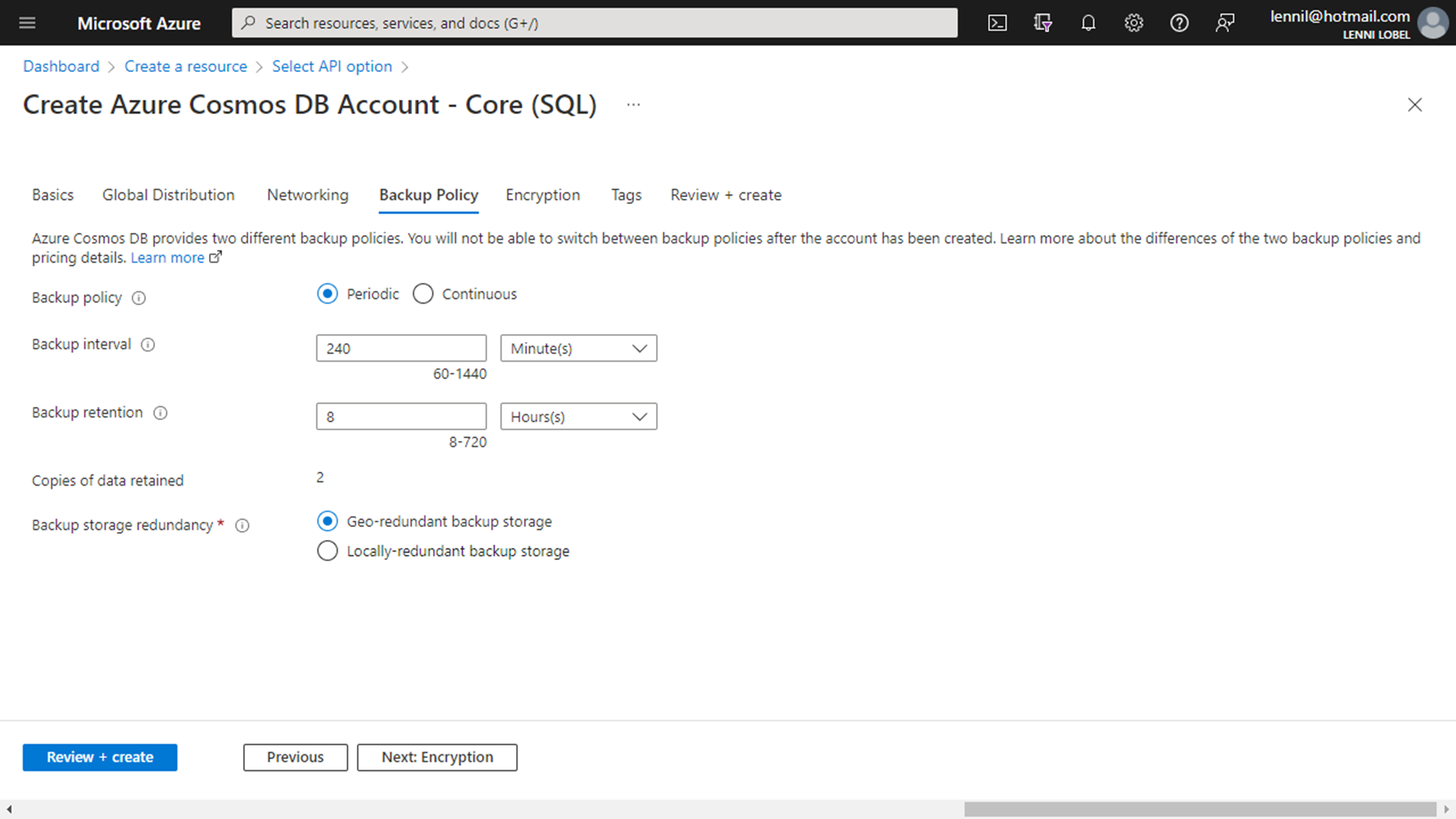
Also notice that, by default, you get geo-redundant backup storage, which adds yet another layer of data protection. So – even for single-region accounts – your backups will be written to two regions; the region where the account resides, and the regional pair associated with that region. All backups are encrypted at rest, and in-flight as well, as they get transferred for geo-redundancy to the regional pair, using a secure non-public network.
Once the account is created, you can navigate over to the Backup and Restore blade and reconfigure the periodic backups. For example, I can go ahead and change the interval from four hours, to be every hour.
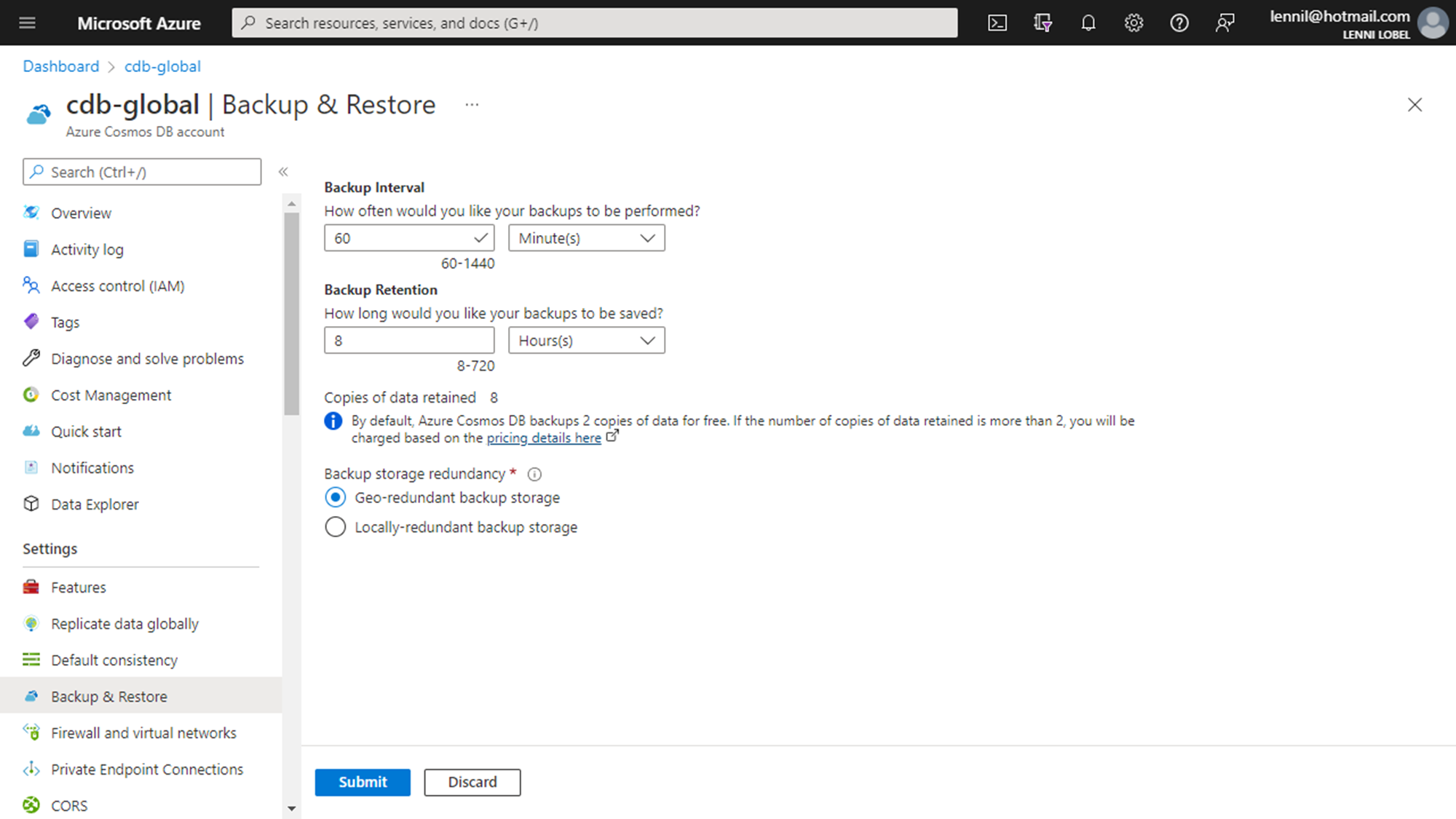
Increasing the frequency for the same retention period of 8 hours results in 8 copies being retained, and so we see a message telling us that we’re incurring an extra charge for storage, since only the first 2 copies are free. Currently, that charge is fifteen cents a month per gigabyte of backup storage, though charges can vary by region.
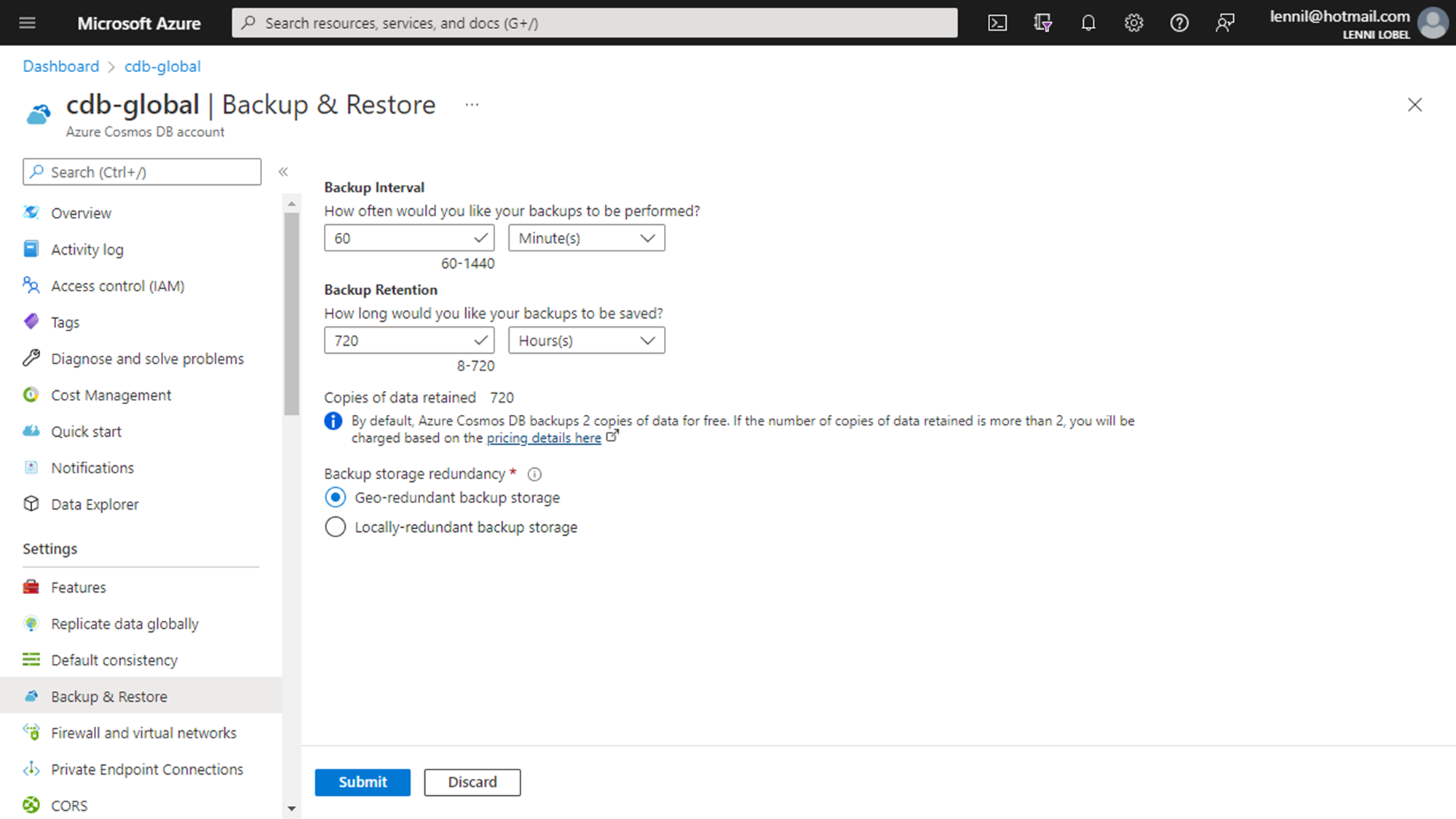
Now if I bump up the retention period from 8 hours to 720, which is 30 days now I’m retaining 720 backup copies, since we’re taking one backup an hour and retaining them for 720 hours.
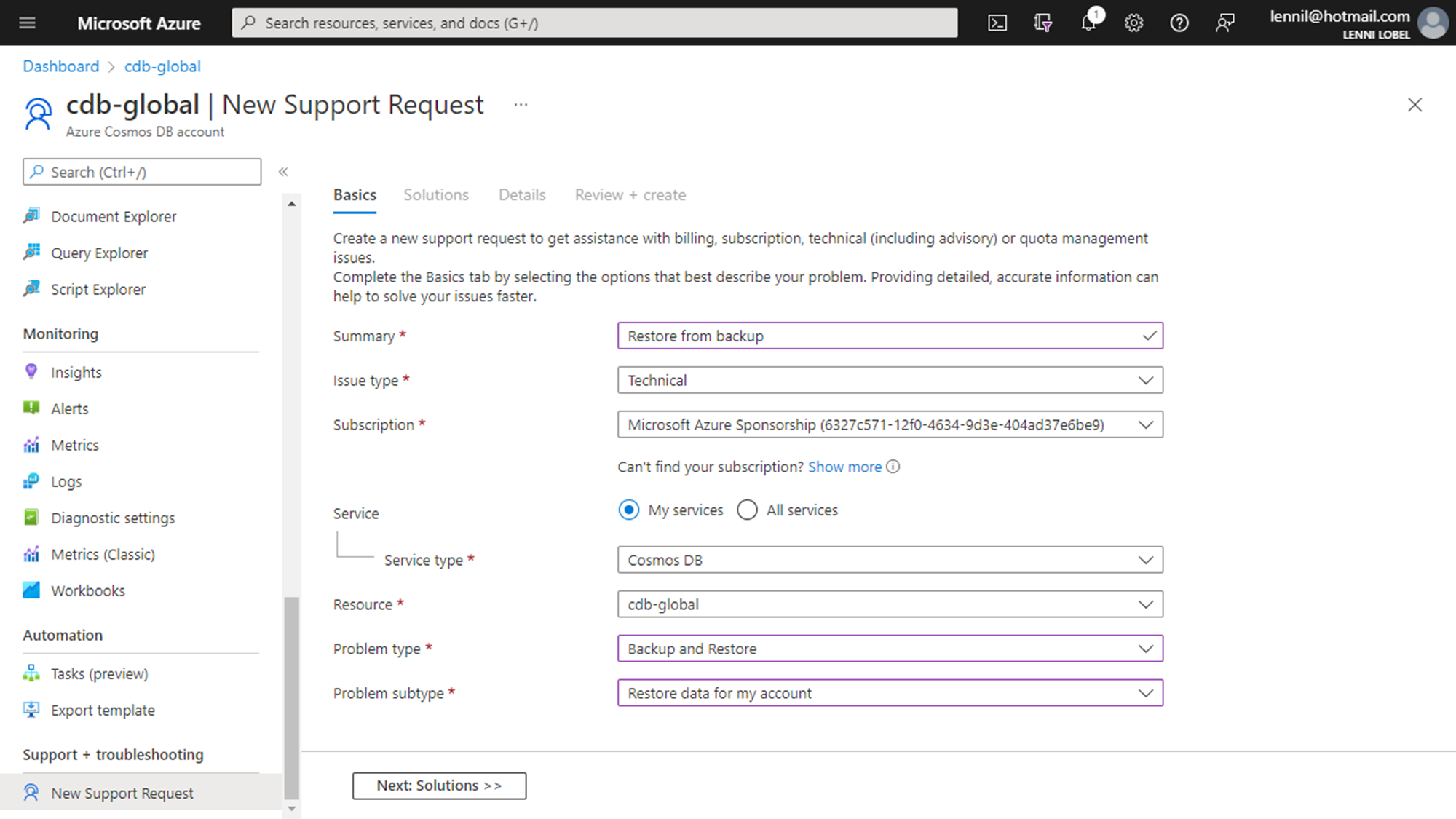
To restore from a periodic backup, you need to open a support ticket by scrolling all the way down on the left and choosing New Support Request. For basic information, you need to type a brief summary description, and indicate that type of problem you need help with. For example, I’ll just say Restore from backup for the summary. Then when I choose Backup and Restore as the Problem Type, I can then choose Restore Data For My Account as the Problem Subtype.
Then click Next to move on to the Solutions tab.
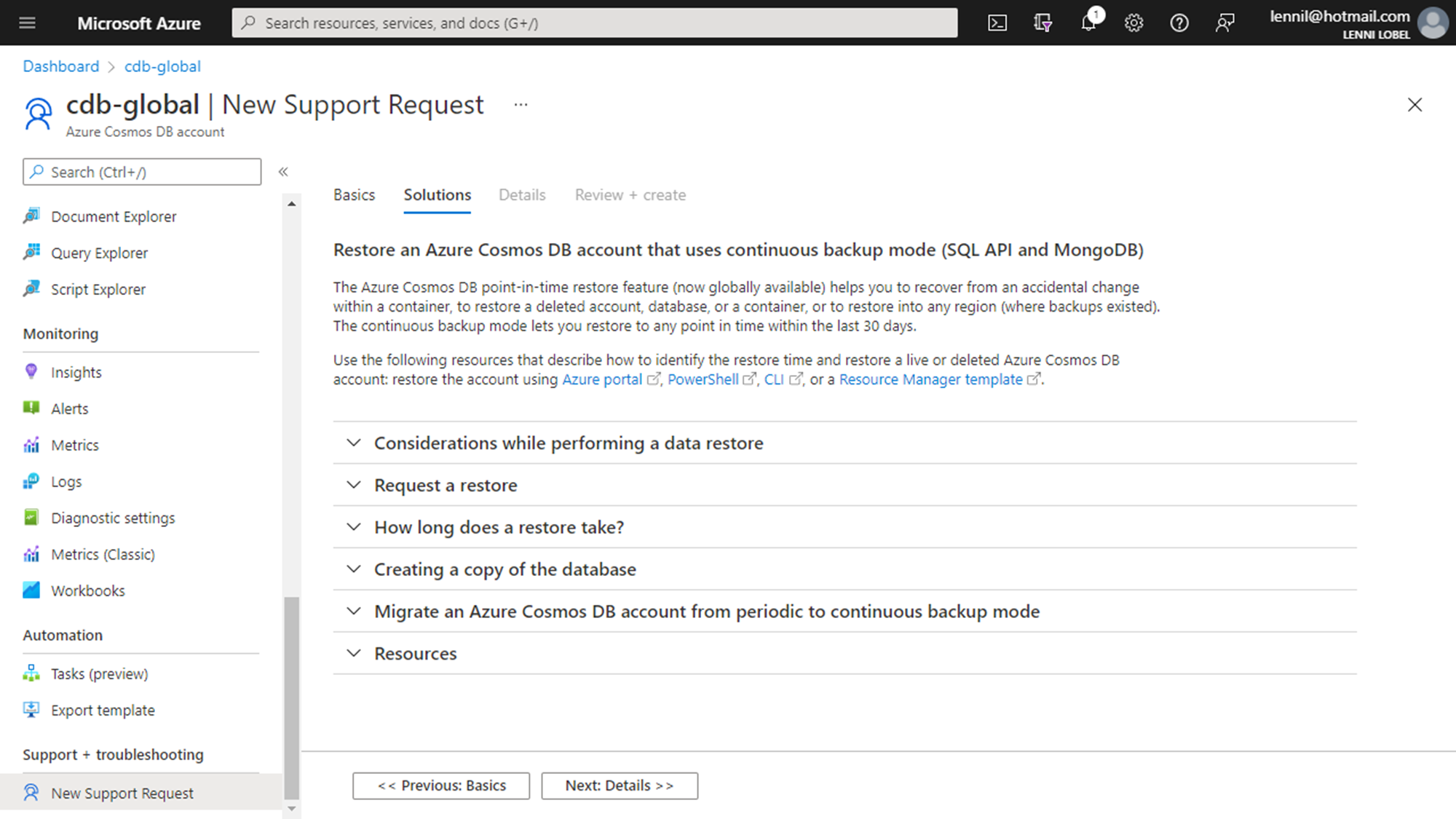
There’s no input on this tab, it just has a lot of useful information to read about restoring your data. For example, it recommends increasing the retention to within 8 of the desired restore point, in order to give the Cosmos DB team enough time to restore your account – among other things to consider for the restore. It also explains how long you can expect to wait for the restore, which – while there’s no guarantee – is roughly four hours to restore about 500 GB of data.
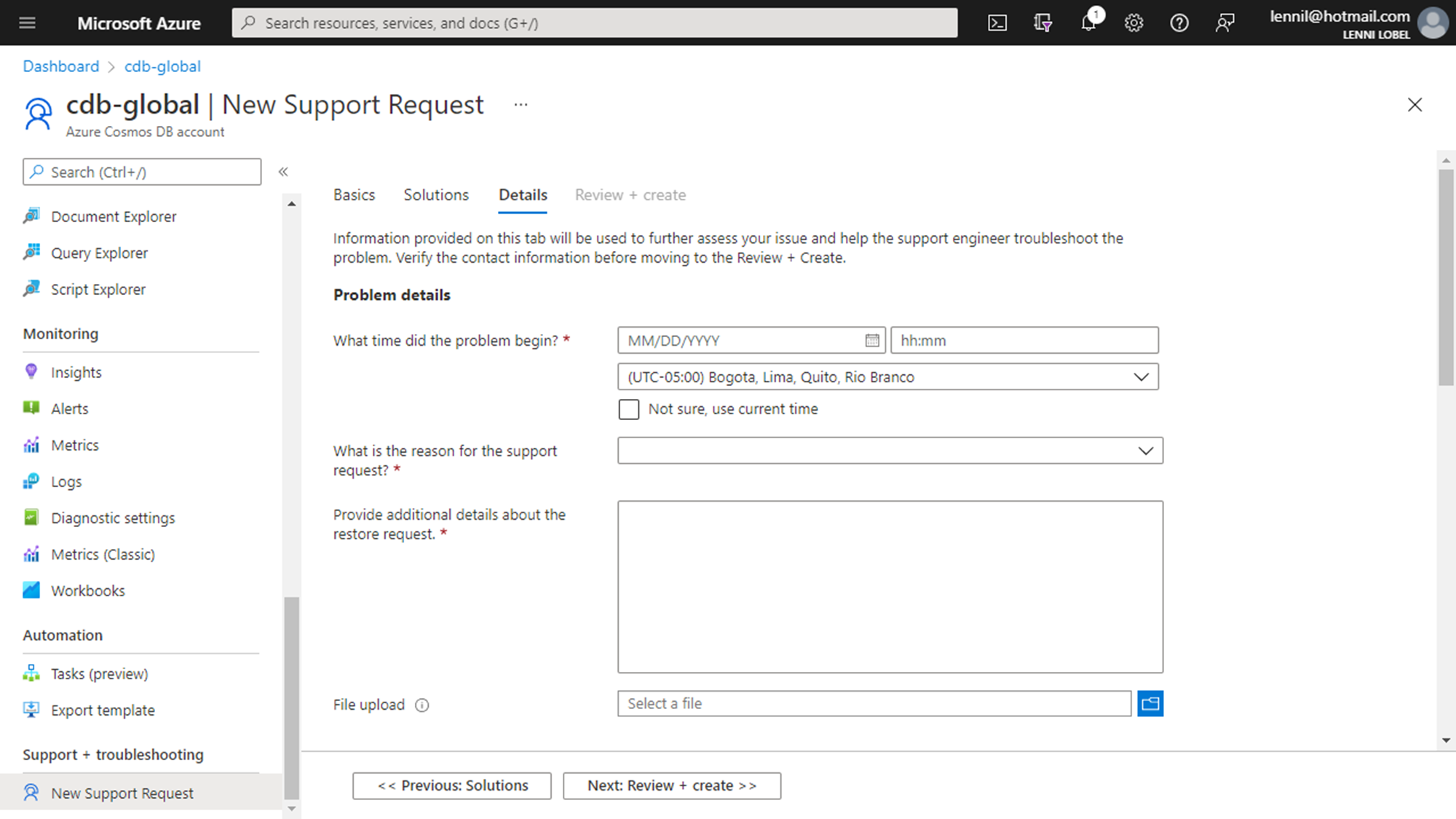
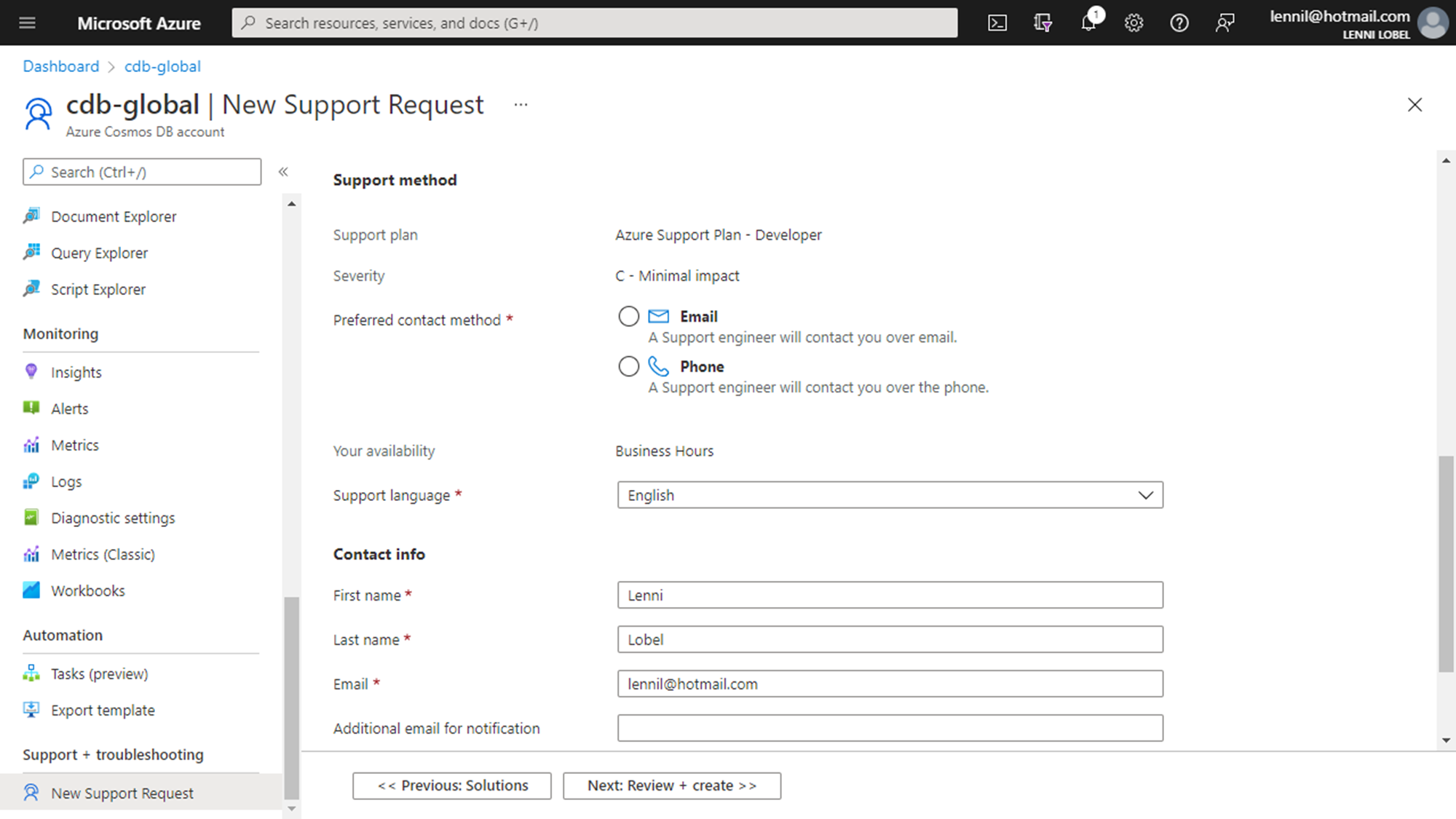
Next you’re on the Details tab, where you supply the specifics. Like when the problem started, and whether you need to restore deleted or corrupted data. As you input this form, you can indicate whether you need to restore the entire account, or only certain databases and containers. Then scrolling down some, you can put in your contact info and how you prefer to be contacted.
Then click Next to review your support request.
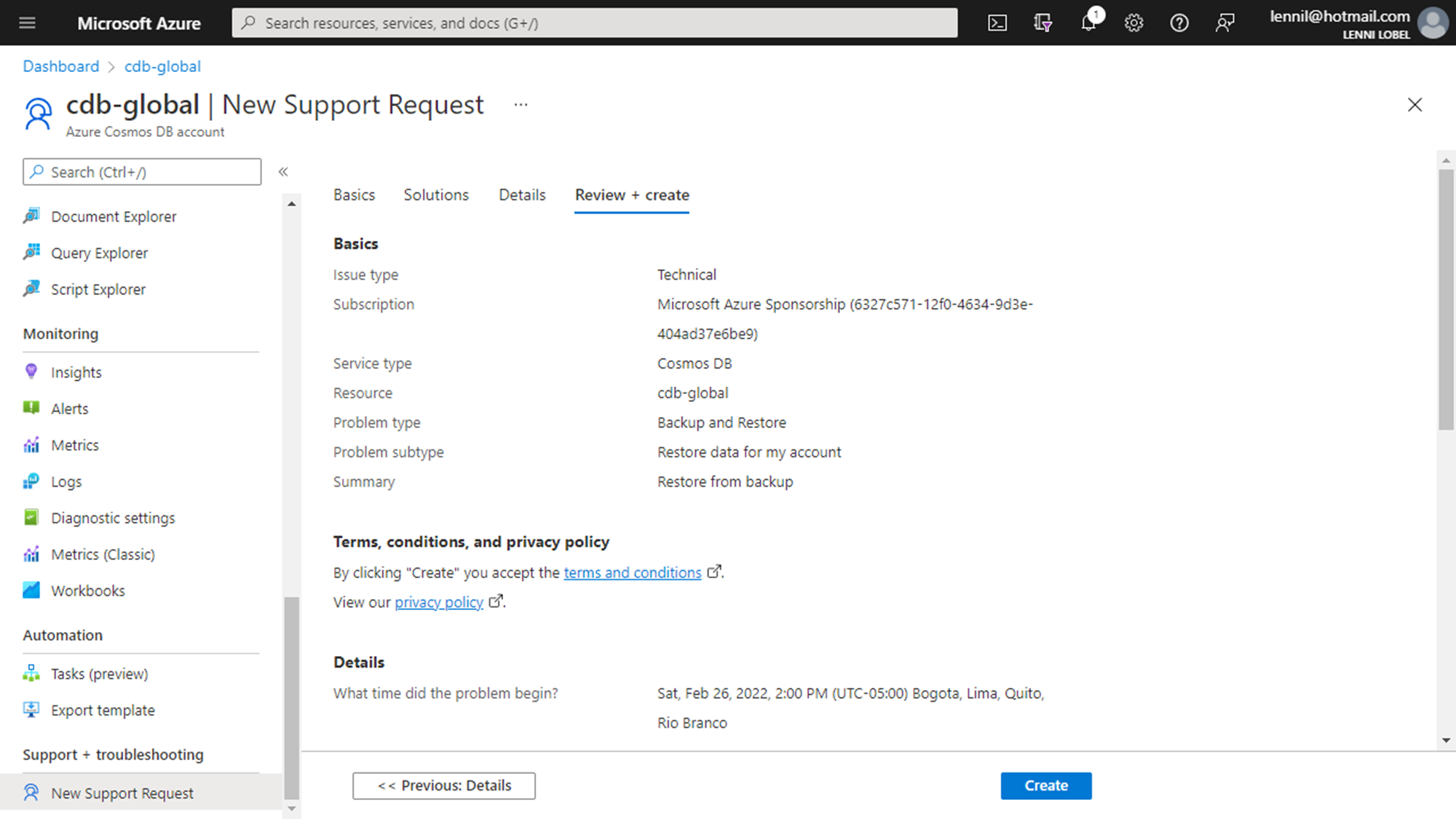
Finally, click Create to open the ticket to restore your data.
Continuous Backup
Now lets have a look at continuous backups, which work quite a bit differently than periodic backups.
Here on the Backup Policy tab, when you’re creating a new account, you can just click Continuous, and you’ll get continuous backups for the new account.
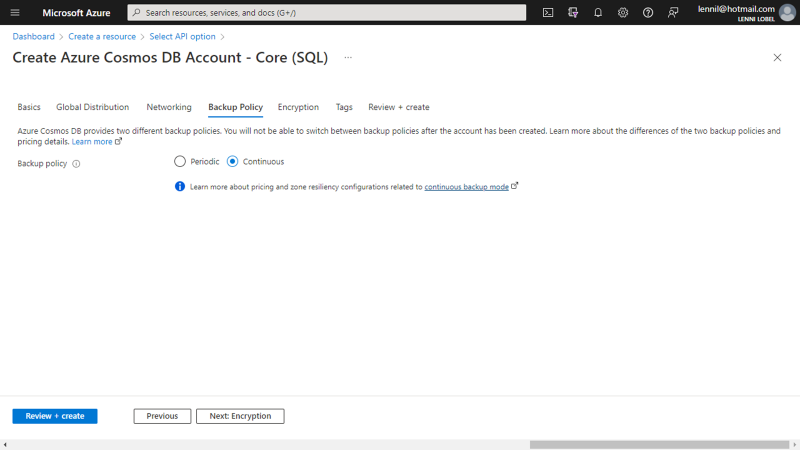
And there again we get a message about the additional charges that we’ll incur for this feature. Currently, the charge for continuous backup storage is 25 cents a month per gigabyte, and for geo-replicated accounts, that gets multiplied by the number of regions in the account. There’s also a charge for if and when you need to perform a point-in-time restore, and that’s currently 19 cents per gigabyte of restored data. And again, this can vary by region, so it’s always best to check the Cosmos DB Pricing page for accurate charges.
If you don’t enable continuous backups at account creation time, you’ll get periodic backups instead. And then, you can head over to the Features blade showing that Continuous Backup is Off.
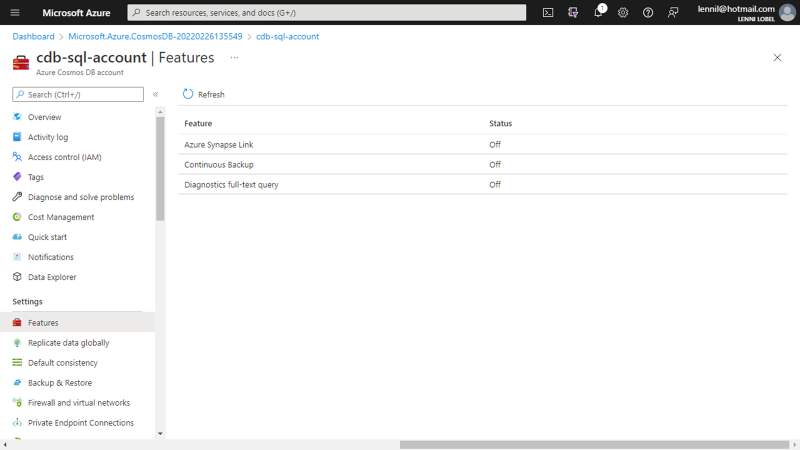
Simply click to enable it; though note that once continuous backups are turned on for the account, you cannot switch back to using periodic backups.
Now that continuous backups are enabled, the Backup and Restore blade gets replaced by the Point-In-Time Restore blade.
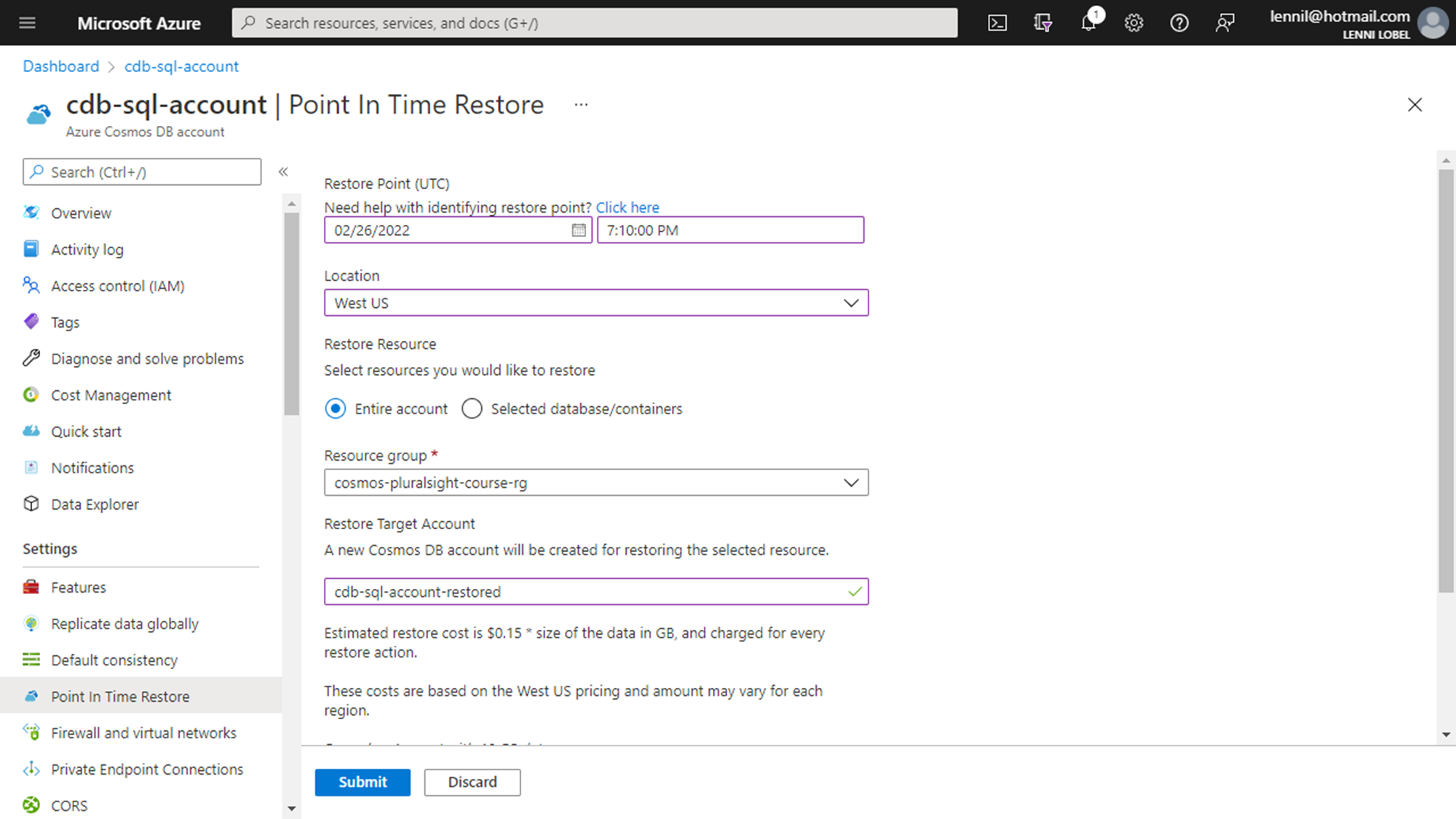
This blade lets you restore from the continuous backup yourself, without opening a support ticket with the Cosmos DB team. Just plug in any desired point-in-time for the restore within the past 30 days. You can also click the link on Need help with identifying restore point? to open the event feed, which shows a chronological display of all operations to help you determine that the exact time should be.
Then you pick the location where the account gets restored, which needs to be a location where the account existed at the specified point-in-time. Then you get to choose whether to restore the entire account, or only specific databases and containers, and finally, the resource group and name for a new account where all the data gets restored to.
Then click Submit, and you’ve kicked off the restore.
Summary
Recovering from backups is something we all like to avoid. But when it becomes necessary, it’s good to know that Cosmos DB has you covered with your choice of periodic or continuous backups. So you can sleep easy knowing that you’re protected, if you ever need to recover from accidental data corruption or deletion.